Setting up the menu
This manual covers the structure of the menu: how categories and service courses are organised, and how modifiers and prices are configured. To edit individual dishes, see The menu.
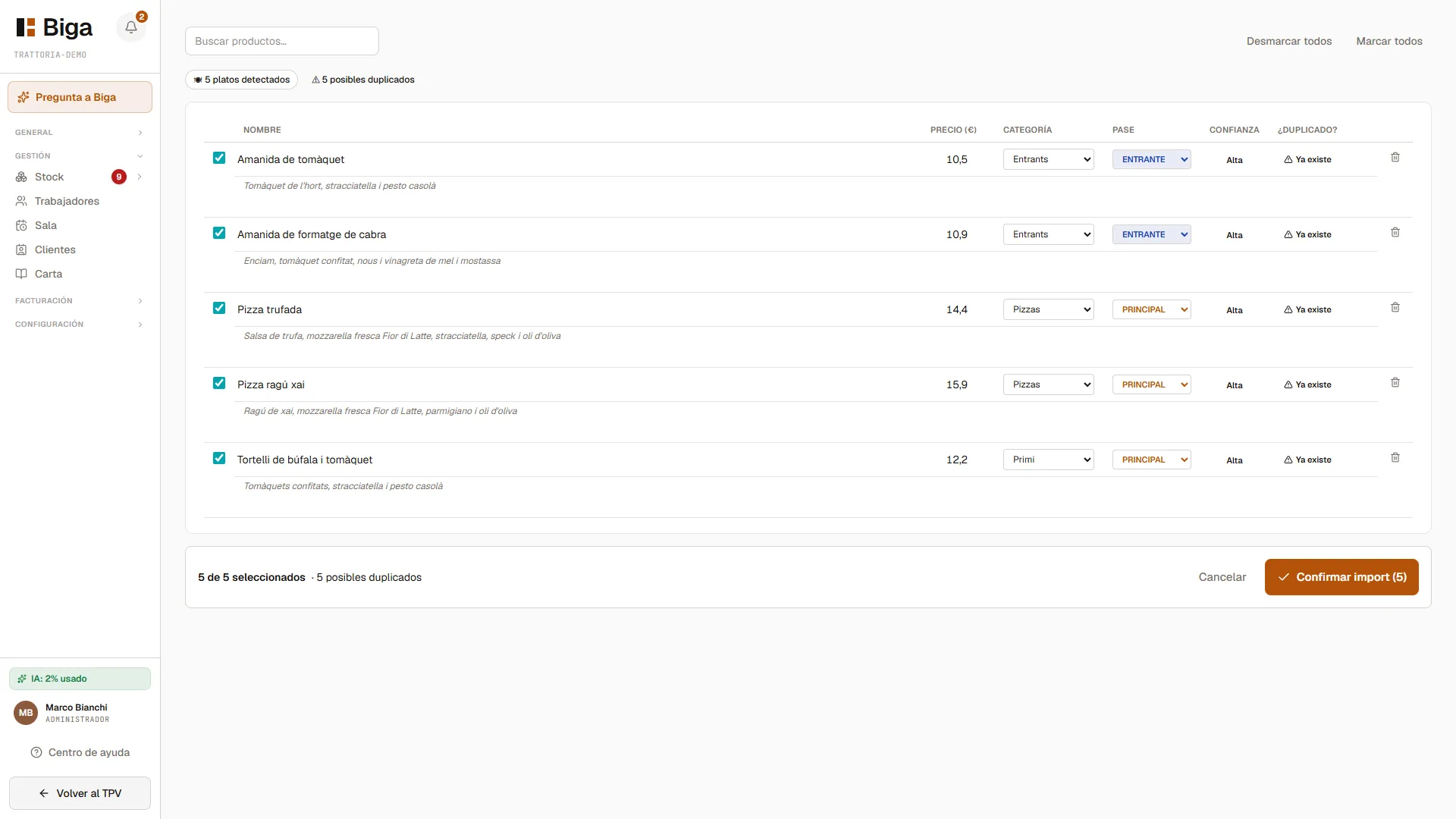 Categories and products: the backbone of the menu.
Categories vs courses
These are two different concepts:
- Category — how the menu is organised (Antipasti, Primi, Pizzas, Desserts, Drinks…). It’s stable and managed from the back office.
- Service course — how the service is organised (starters, mains, desserts…). It’s derived from the category, but the waiter can override it dish by dish at the POS.
On the KDS, at the POS and at checkout, dishes are grouped by course, not by category — because a starter can be served as a main and vice versa.
Modifiers
Modifiers are variations of a dish. There are two types:
- Dish-specific — its own options (for example, how the meat is cooked). They’re defined when editing the product.
- Global — they apply to many dishes at once. The usual ones: Gluten-free, Lactose-free, Extra cheese, No spice, No onion, To go.
Global modifier groups apply by the product’s category. The group drawer has a categories selector: the modifier only shows up on dishes in those categories. If you leave it empty, it applies to all products.
Each modifier can either change the price (extra cheese) or just be an instruction for the kitchen (no onion).
Prices and VAT
Prices are entered with VAT included. The default VAT is set in Settings → Tax (see General settings).
Common mistakes
- A global modifier doesn’t show up on a dish → check that the global group is active and that the dish’s category is included in the group (or that the group applies to all categories).
- Dishes appear in the wrong order at the POS → review the order of the categories in the menu.