What is B2B invoicing
When a customer is a company or a freelancer, they often need an invoice with their tax ID (NIF) instead of a receipt. In Biga, that’s a B2B invoice. You manage it in the back-office, under the Invoicing group.
- Receipt (series T) — the standard proof of a sale.
- B2B invoice (series F) — with the customer’s full tax details.
- A receipt can be converted into an invoice: the original receipt is kept and the two stay linked.
One single receipt (less paper). During service the guest gets the proforma (“PAYMENT PENDING”, informational). The fiscal receipt is always generated on payment (with its sequential number intact), but it is only printed on demand —the Print receipt button, which can be reprinted— or if you enable Settings → Receipts → Print the fiscal receipt automatically on payment. See The POS.
Where sales live
Everything that counts as sales lives under Invoicing → Sales, a page with three tabs:
- Orders — the receipts and orders issued at the POS.
- B2B invoices — invoices with a tax ID.
- Cash closures — the history of cash closures.
Issued receipts
Under Invoicing → Sales → Orders tab you’ll see the issued receipts. Click one to view its details and convert it into an invoice if needed.
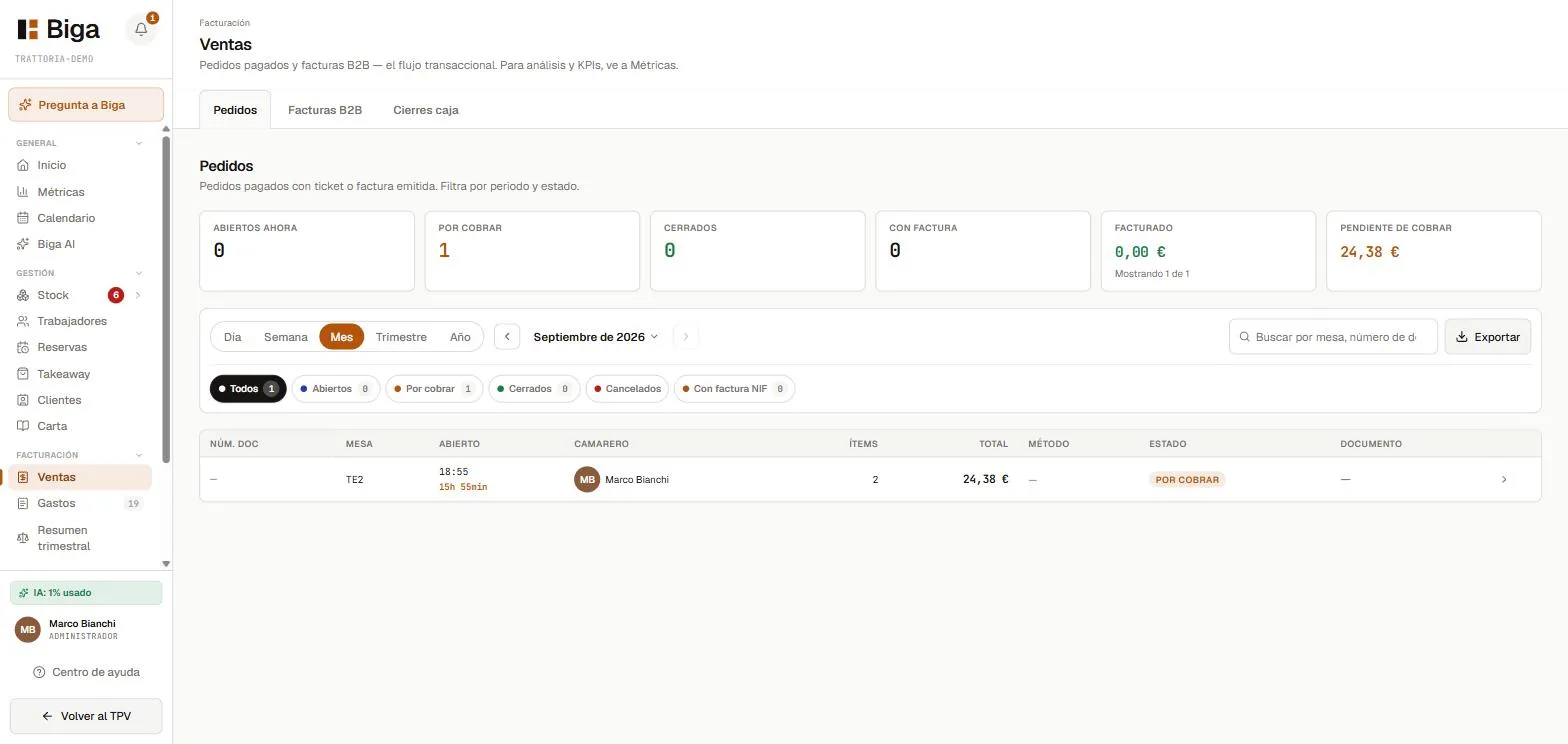 All issued receipts, filterable by period.
Converting a receipt into a B2B invoice
- Under Invoicing → Sales → Orders tab, open the receipt.
- In Issued documents, tap Convert to B2B invoice.
- Fill in the customer details (tax ID, legal name, address…). You can save the customer for future invoices.
- Tap Issue invoice.
If you convert the same receipt twice, Biga detects it and won’t duplicate the invoice.
Creating a B2B invoice from scratch
For things that never went through the POS (for example, monthly billing to a delivery platform), go to Invoicing → Sales → B2B invoices tab and tap New invoice. A 3-step wizard opens:
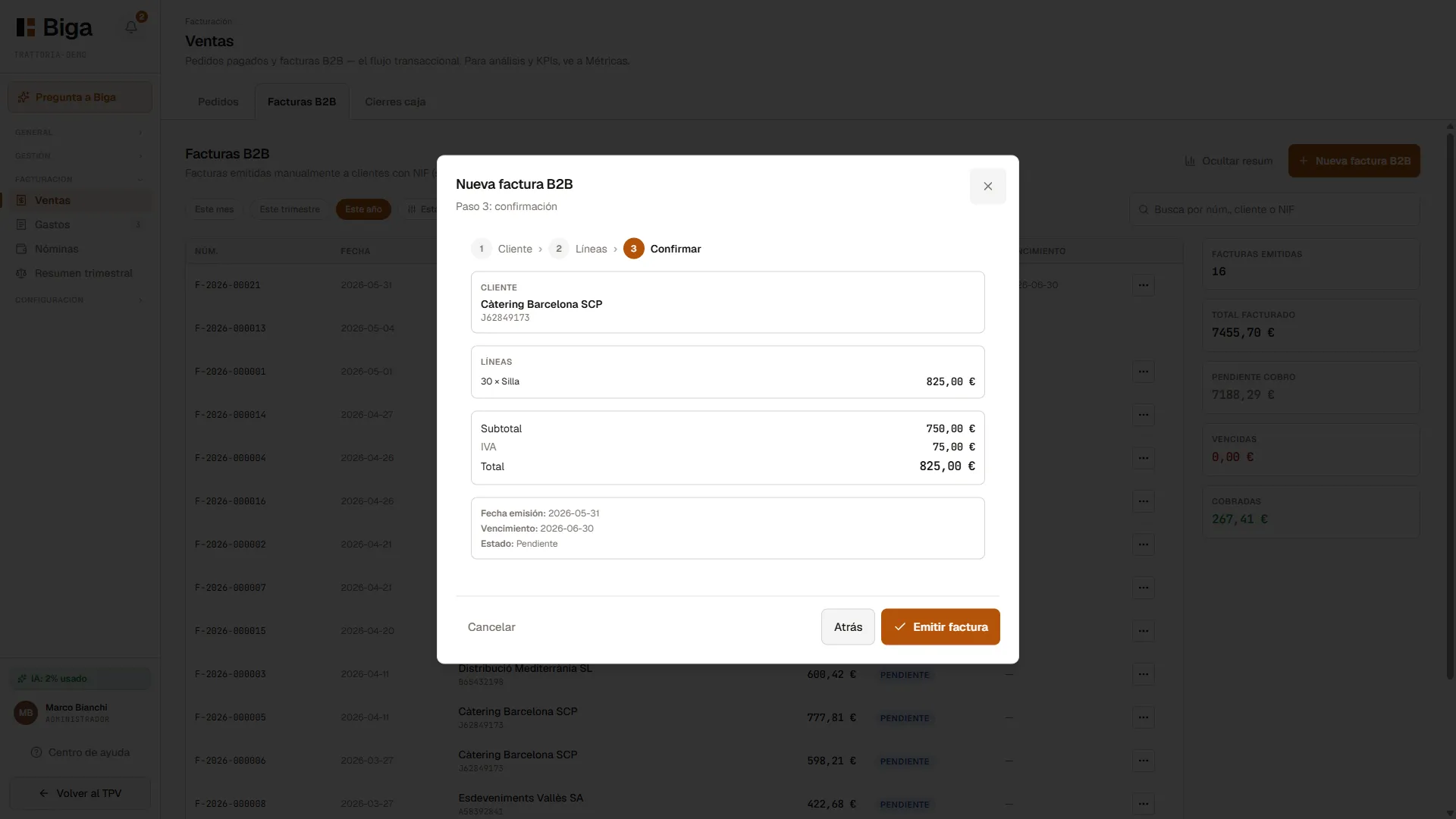 Customer → line items → confirmation.
- Customer: search for one or create it on the spot.
- Line items: description, quantity, unit price and VAT per line; issue date and payment terms.
- Confirmation: review and issue.
Invoice list and payment
The list of issued invoices is under Invoicing → Sales → B2B invoices tab, with filters by period and status and search by customer/tax ID.
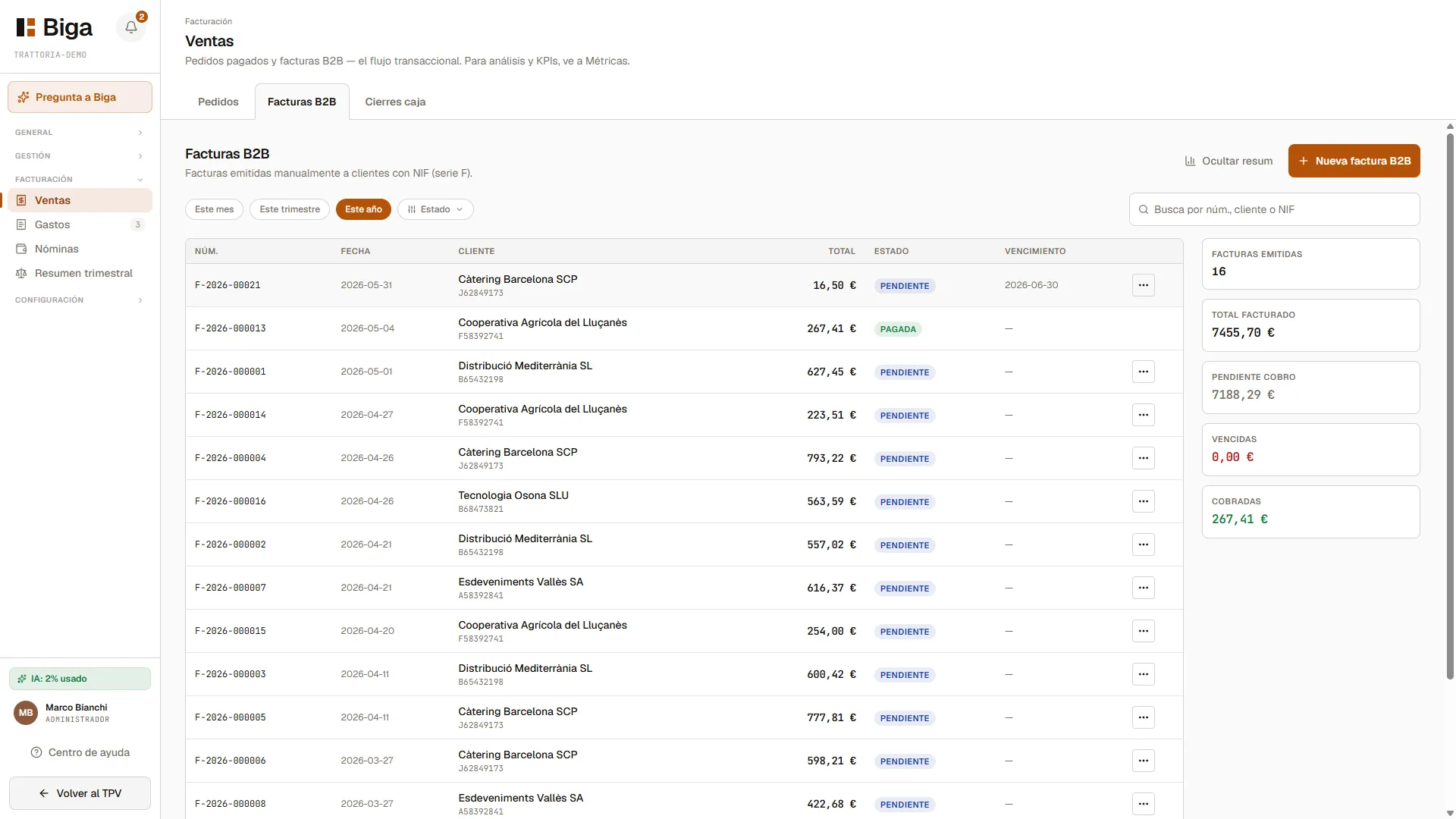 Number, customer, total, status and due date.
To mark one as paid: open it and tap Mark as paid; enter the date and the method (bank transfer, cash, card…).
The invoice PDF
Each invoice generates a professional PDF with the tax details, the line items with VAT and, if you’ve set it up, the IBAN in the footer so the customer can make the transfer.
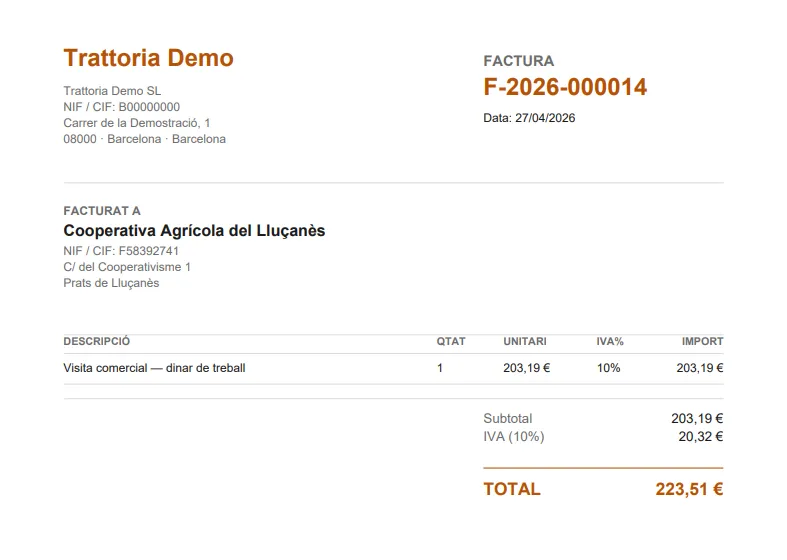 The PDF includes net totals, VAT and the IBAN for the transfer.
For now, Biga doesn’t email the invoice automatically: download the PDF and send it yourself (email, WhatsApp). If the PDF failed, there’s a Retry button.
Closures and quarterly summary
Under Invoicing → Sales → Cash closures tab you have the history of cash closures, and under Quarterly summary the tax view of the quarter.
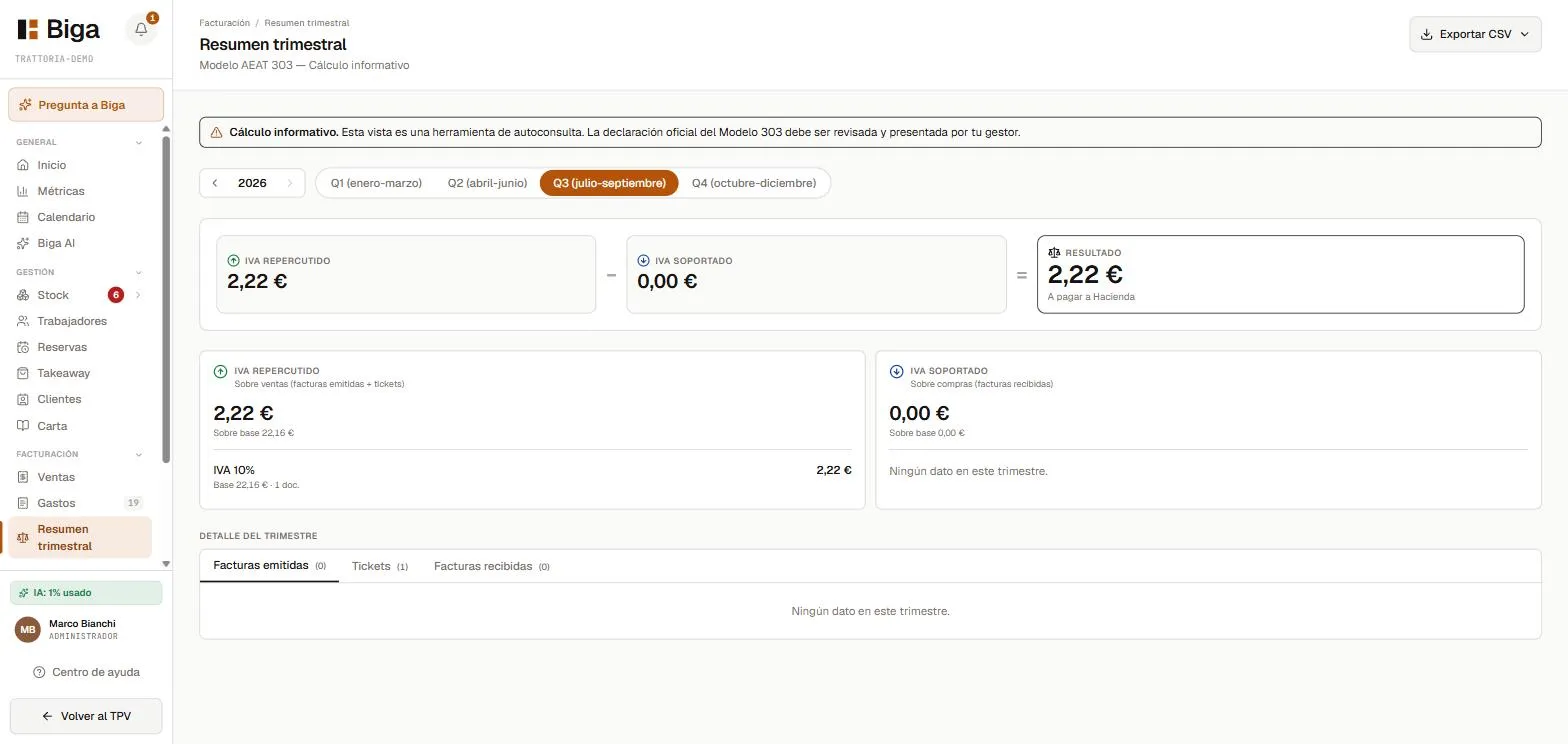 Informative calculation of Spain’s Modelo 303: output VAT minus input VAT. The official filing is reviewed and submitted by your accountant.
Classifying the VAT on expenses. If the quarter has expenses with unclassified VAT, the summary flags them with a Classify VAT link. Tapping it takes you straight to the Expenses page, already filtered to that quarter and showing only the expenses whose VAT is still undetermined, so you can fix them in one go. Expenses also has its own VAT filter (including a No VAT option) to find them whenever you like.
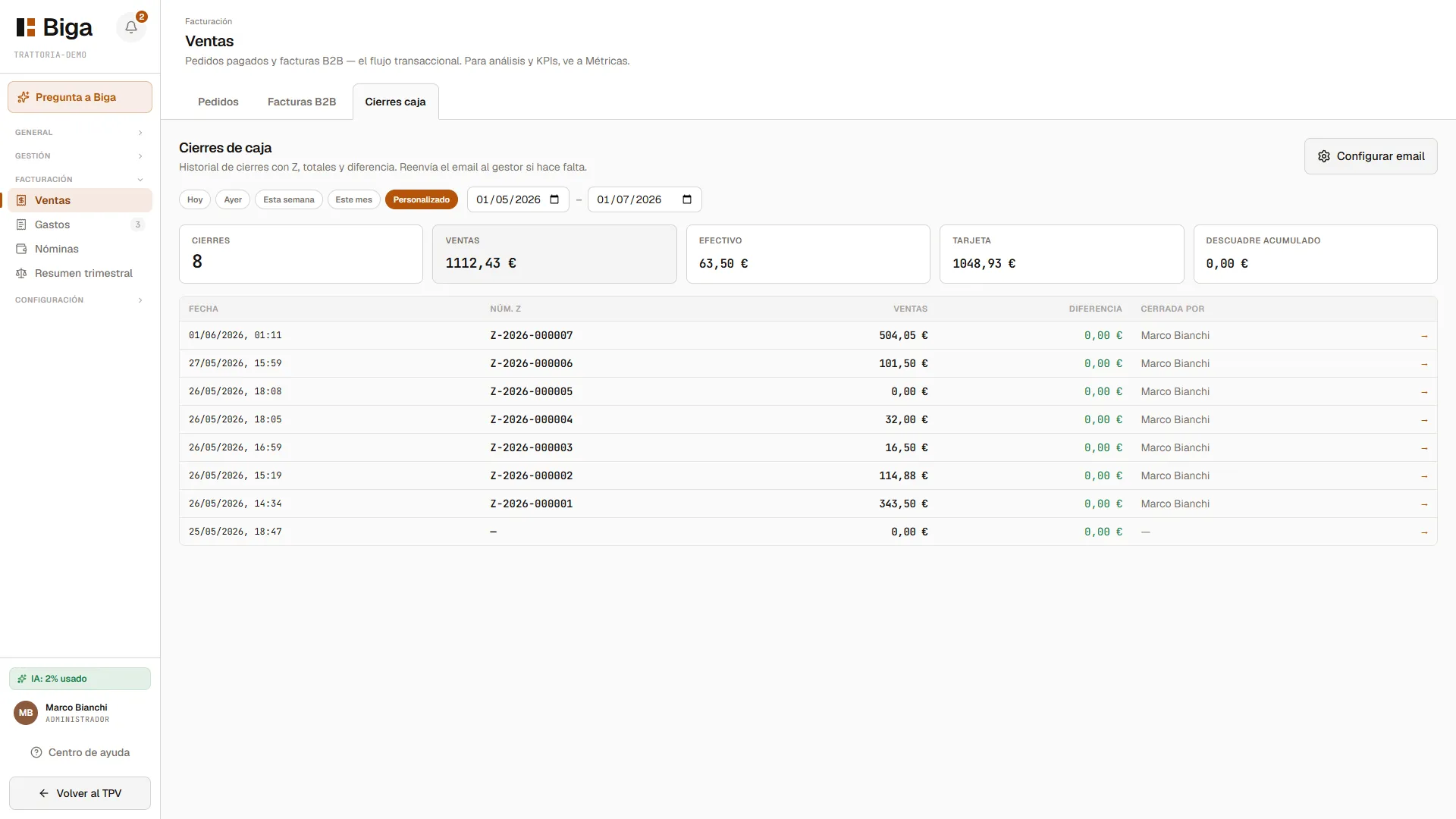 History of closures with the breakdown of each shift.
Common issues
- I can’t find the B2B invoice list → it’s under Invoicing → Sales → B2B invoices tab.
- The tax ID is rejected → use the Spanish format: 12345678Z, X1234567L or A12345678.
- The PDF doesn’t show the IBAN → set it up under Settings → Tax settings.