What the Orders screen is
The Orders screen (“Orders” button on the POS) manages the pickup and delivery orders you handle in-house from the restaurant, in real time. It’s a board with columns based on each order’s status.
For orders coming in from external platforms (Glovo, Uber Eats…), see the External orders manual. For the courier’s work, see Courier.
The board columns
- In queue — orders received, waiting to be accepted.
- In kitchen — accepted and being prepared.
- Ready — prepared, ready to be picked up or to go out.
- Out for delivery — (delivery) the courier is already taking them.
The filters at the top (All / Pickup / Delivery) show only the type you care about.
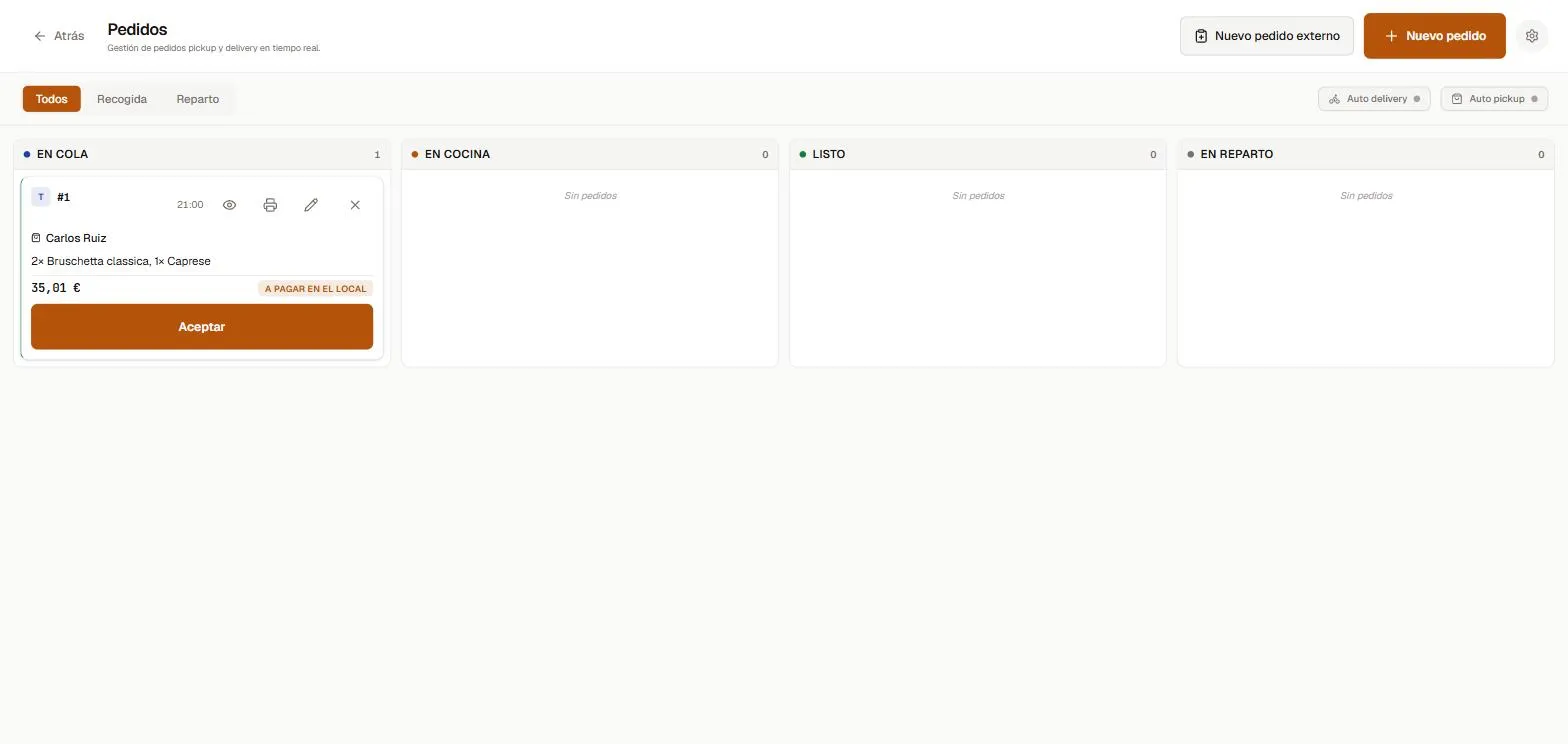 The In queue / In kitchen / Ready / Out for delivery columns, with an order waiting to be accepted.
Create a new order
- Tap New order.
- Choose the type: Pickup (the customer comes to collect it) or Delivery.
- Items — add the products (with modifiers if needed).
- Time — the committed pickup or delivery time.
- Details — the customer (search for them or create a new one) and the payment method. For delivery, also the address (with autocomplete) and the delivery fee based on the zone.
- Create order.
Edit an order
With the order’s edit (pencil) button you can change its details as long as it hasn’t been charged:
- Items — change the quantity with the + / − buttons, or remove an item with the trash button. The total recalculates on its own, and on delivery orders the delivery fee is preserved.
- Time of pickup or delivery.
- Address (delivery only).
- Notes.
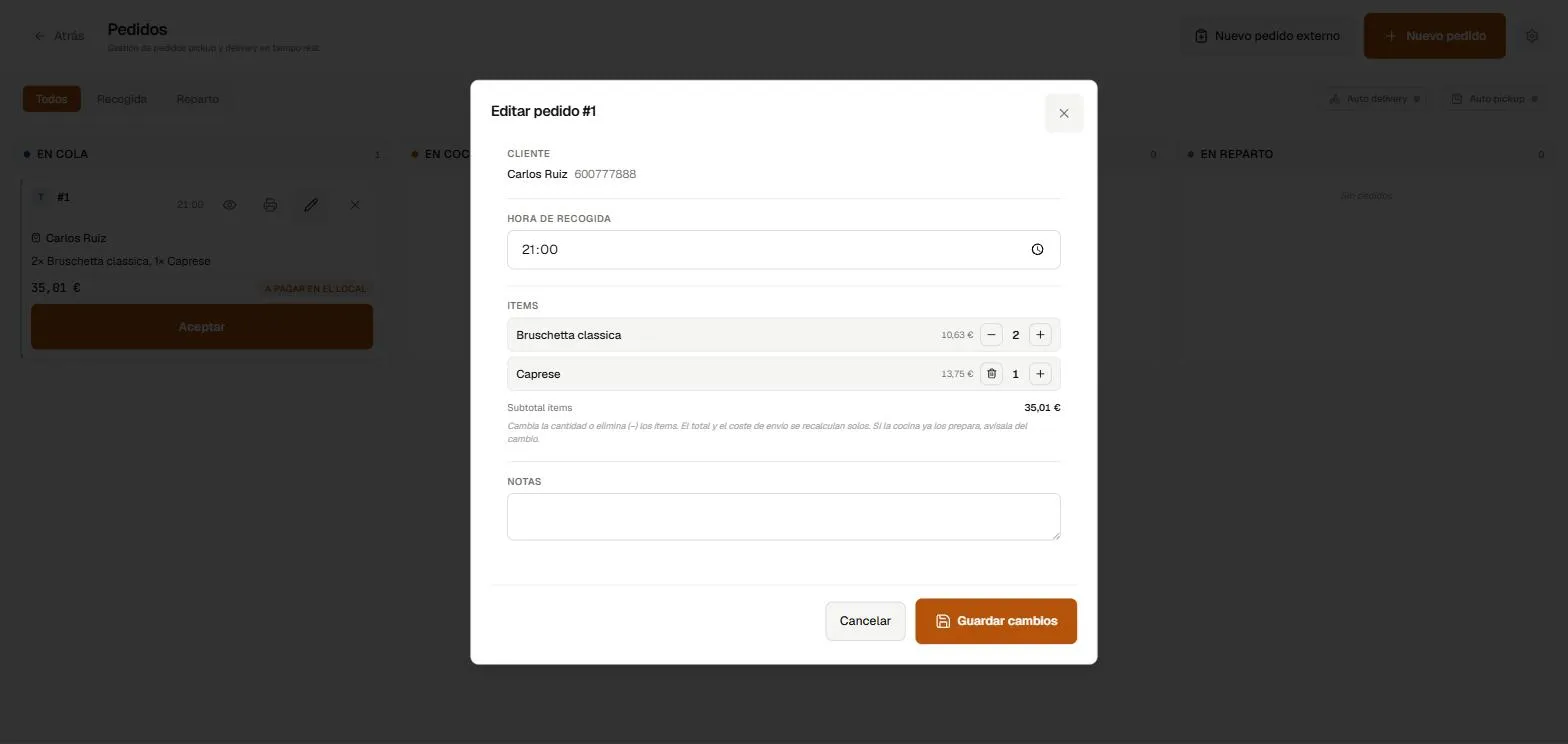 Change the quantity with + / − or remove an item with the trash button; the total recalculates on its own.
If the kitchen is already preparing the order, let them know about any item change: editing doesn’t reprint the kitchen ticket on its own.
Accept, mark ready and dispatch
- Accepting an order from the queue moves it to In kitchen.
- Mark ready when it’s prepared.
- For delivery, assign a courier and the order moves to Out for delivery.
- The Auto delivery and Auto pickup switches accept new orders automatically, skipping the queue.
Charging
Depending on the settings, the order can be charged at the venue (on pickup) or in advance. Charging generates the fiscal receipt like any other sale.
Common issues
- I can’t edit the items → the order is already charged or invoiced. Once charged, it can’t be touched.
- I changed items and the kitchen was already preparing it → let the kitchen know; editing doesn’t reprint the kitchen ticket on its own.