General settings
In the back office, under the Settings group, you define your restaurant’s details. The screen has three tabs: Restaurant details, Daily operations and Advanced. It’s an admin task and you’ll usually do it just once, during setup.
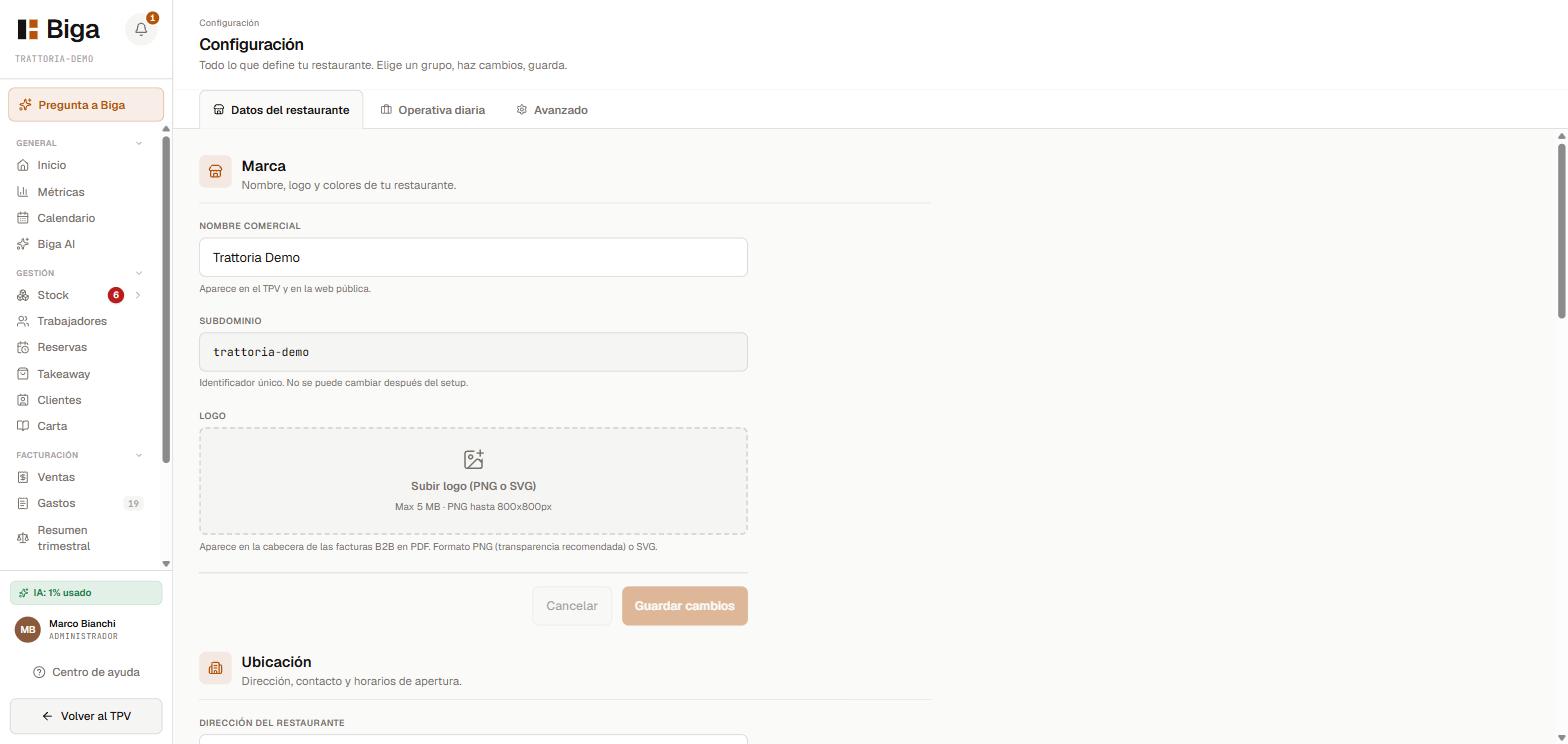 The three settings tabs; under Brand you’ll find the name, the subdomain and the logo.
Tax details and IBAN
Under Settings → Restaurant details → Tax enter your legal name, tax ID (NIF/CIF), legal form and registered address (these appear on receipts and invoices), the default VAT rate and your IBAN for transfers (it shows in the footer of the B2B invoice PDF).
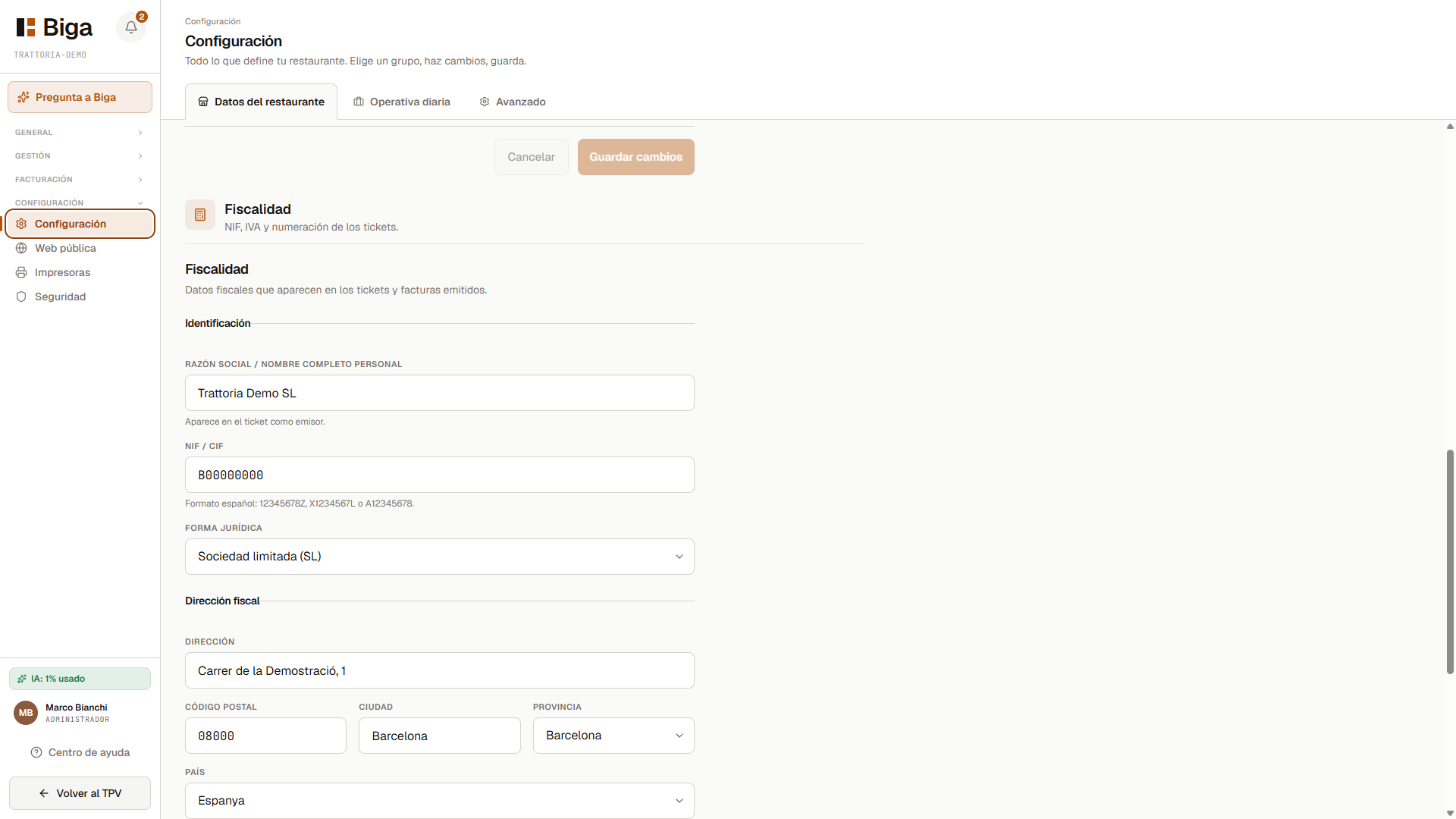 Legal name, tax ID, legal form and registered address: what appears on every document.
Tax details are essential before issuing any receipt. Double-check them: they appear on every legal document.
Language
Under Settings → Language you choose the interface language (Catalan, Spanish or English). It’s set once per restaurant and applies to all devices and users alike — it is not a per-user or per-account preference.
On the same screen there’s a separate target languages section, used for the automatic translation of the menu with AI (the original language you write in is Catalan, and from here you choose which languages it gets translated into).
Fiscal receipts, invoice PDFs and emails are issued in Catalan for now, regardless of the interface language.
Operations and hours
Under Settings → Operations you set your service hours and options such as the KDS toggle (kitchen display on/off — see Kitchen and KDS).
Reservations
Under Settings → Reservations you control how reservations work and, specifically, the public website’s self-booking:
- Reservation alert email — the address where Biga emails you every time a reservation comes in through the website.
- Maximum covers per slot — the ceiling of people the website can accept for the same time, so a service doesn’t get swamped.
The detail of both, plus each table’s Bookable online switch, is in Reservations.
Branding
Your logo and the public website images are managed under Public website (see The public website). The logo also appears on documents.
Security
Under Settings → Security you can:
-
Set or change the two admin PINs (6 digits each), with the Config PIN / Cash management PIN selector:
- Config PIN — opens the back-office (this settings area).
- Cash management PIN — opens cash open/close and the Z report.
To change one, pick the tab, enter your account password and the new PIN. This lets you give the cash PIN to a manager without giving them access to settings.
-
Enable two-factor authentication (MFA) with an authenticator app (QR code + 6-digit code).
The account password (your login email) is changed from the device login screen, using the “Forgot your password?” link (Biga sends you an email with a link to set a new one). If you have two-factor authentication enabled, it will ask for the code first.
Advanced options
Under Settings → Advanced you’ll find technical options (handle with care):
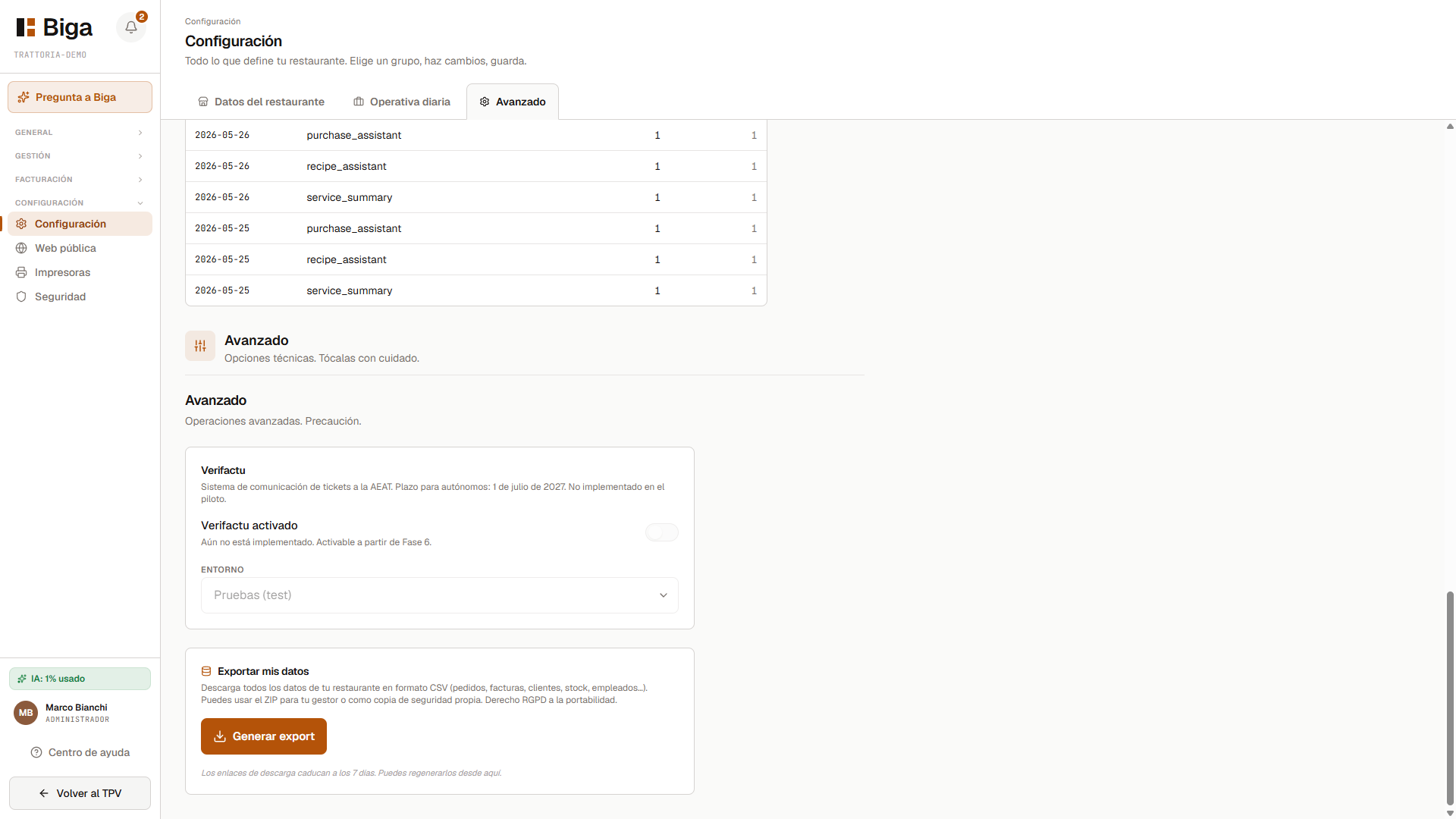 This month’s AI usage, Verifactu and data export.
- AI usage — this month’s consumption of the smart features.
- Verifactu — the system for reporting receipts to the Spanish Tax Agency (AEAT). Not yet implemented (deadline for self-employed: 1 July 2027); the toggle is ready and waiting.
- Export my data — download your entire restaurant as CSV (orders, invoices, customers, stock, employees…) in a ZIP. Handy for your accountant or as a backup (GDPR right to data portability). The links expire after 7 days.
Common issues
- The receipt comes out without a tax ID or address → complete the details under Settings → Tax.
- I changed the language and receipts are still in Catalan → that’s the current behavior; only the interface changes.