Welcome to Biga
Biga is the system that runs your restaurant: you take orders, send them to the kitchen, charge customers, issue receipts and invoices, keep track of stock and see how the business is doing. This guide is for your first day.
You don’t need to know anything about technology. If you can use a phone, you can use Biga.
Logging in at the POS
In the morning, just once, you start the device session with your email and password. This “opens” the POS for the whole day.
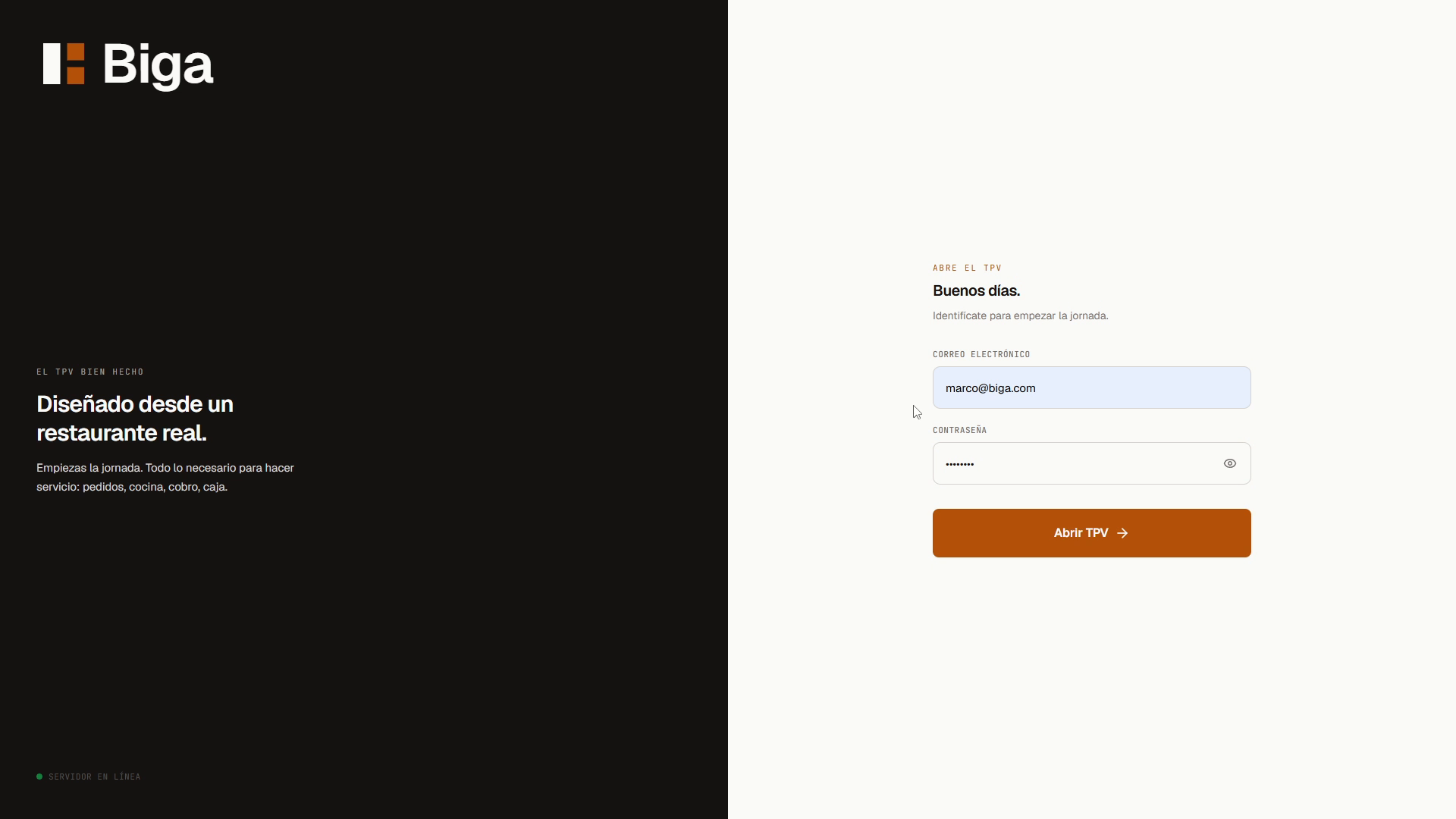 Log in once in the morning to open the POS.
After that, each waiter identifies themselves with their 4-digit PIN to take orders or charge customers — there’s no need to enter the password again.
The admin PIN (6 digits) is different from the waiter PIN (4 digits): the first grants access to sensitive areas (back-office, cash management); the second only identifies who is performing an action.
Two environments, two jobs
Biga has two places, and it’s important not to mix them up:
- The POS (
/tpv) — the day-to-day touchscreen: table layout, orders, charging. Waiters and the floor manager use it during service. - The back-office — the admin panel: menu, team, invoicing, metrics. The admin uses it, usually from a computer.
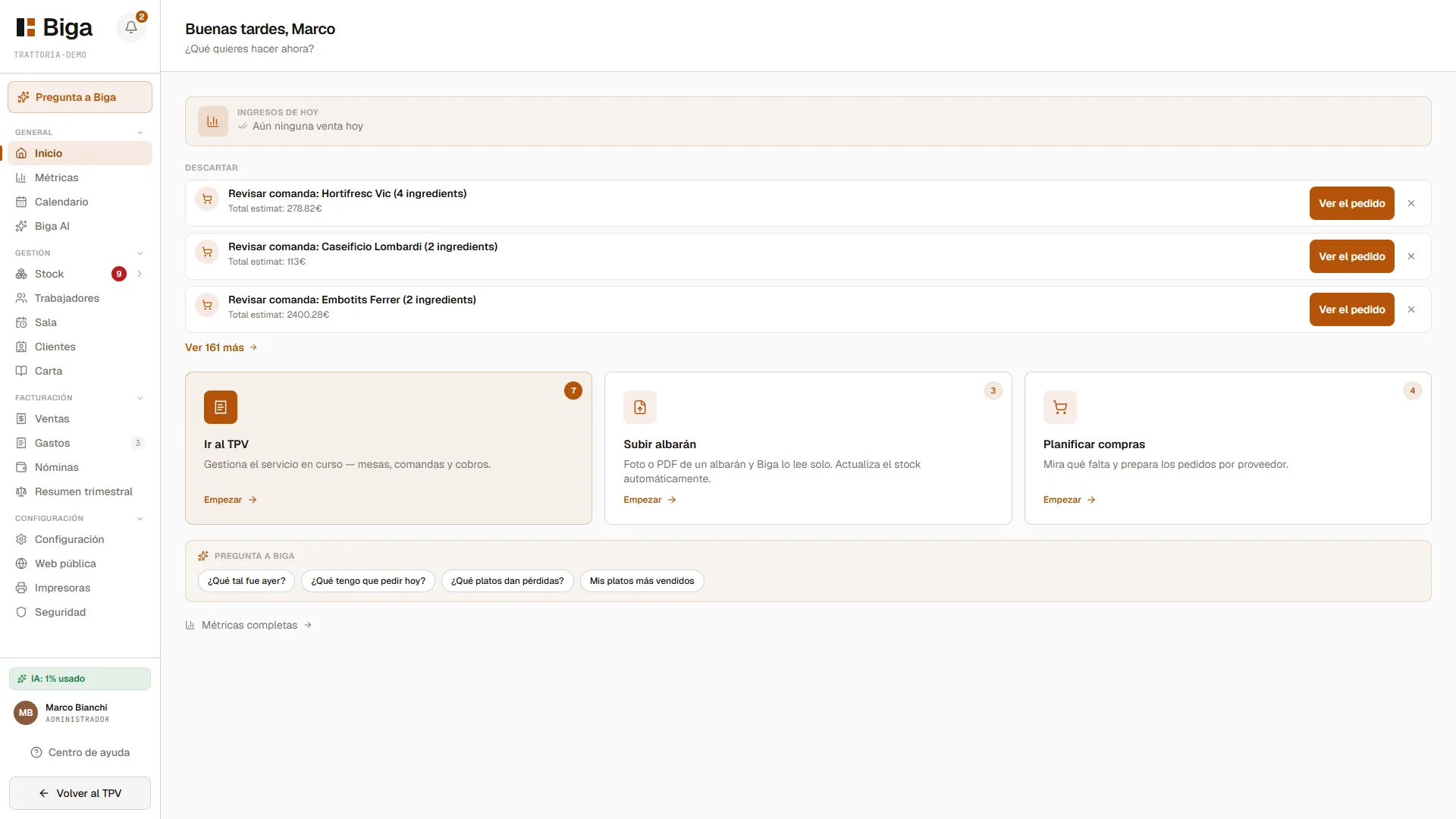 The back-office: the management view of the restaurant.
You can switch between them with “Settings” (on the POS) or “Back to POS” (in the back-office).
Your first service: recommended order
- Set up your tax details (tax ID, address) — essential before issuing receipts. See Settings.
- Load the menu — products, categories and prices. See The menu.
- Add your team and give them a PIN. See Staff.
- Open the cash register before the first charge (Cash management).
- You’re ready to open tables and take orders! See The POS.