Takeaway and delivery
Beyond table service, Biga handles takeaway and delivery orders in a kanban view, so you can keep track of every external order without missing one.
The orders kanban
In Orders you’ll see every external order organised by status: queued → in preparation → ready → picked up/out for delivery. Orders move through the columns as they’re prepared and handed off.
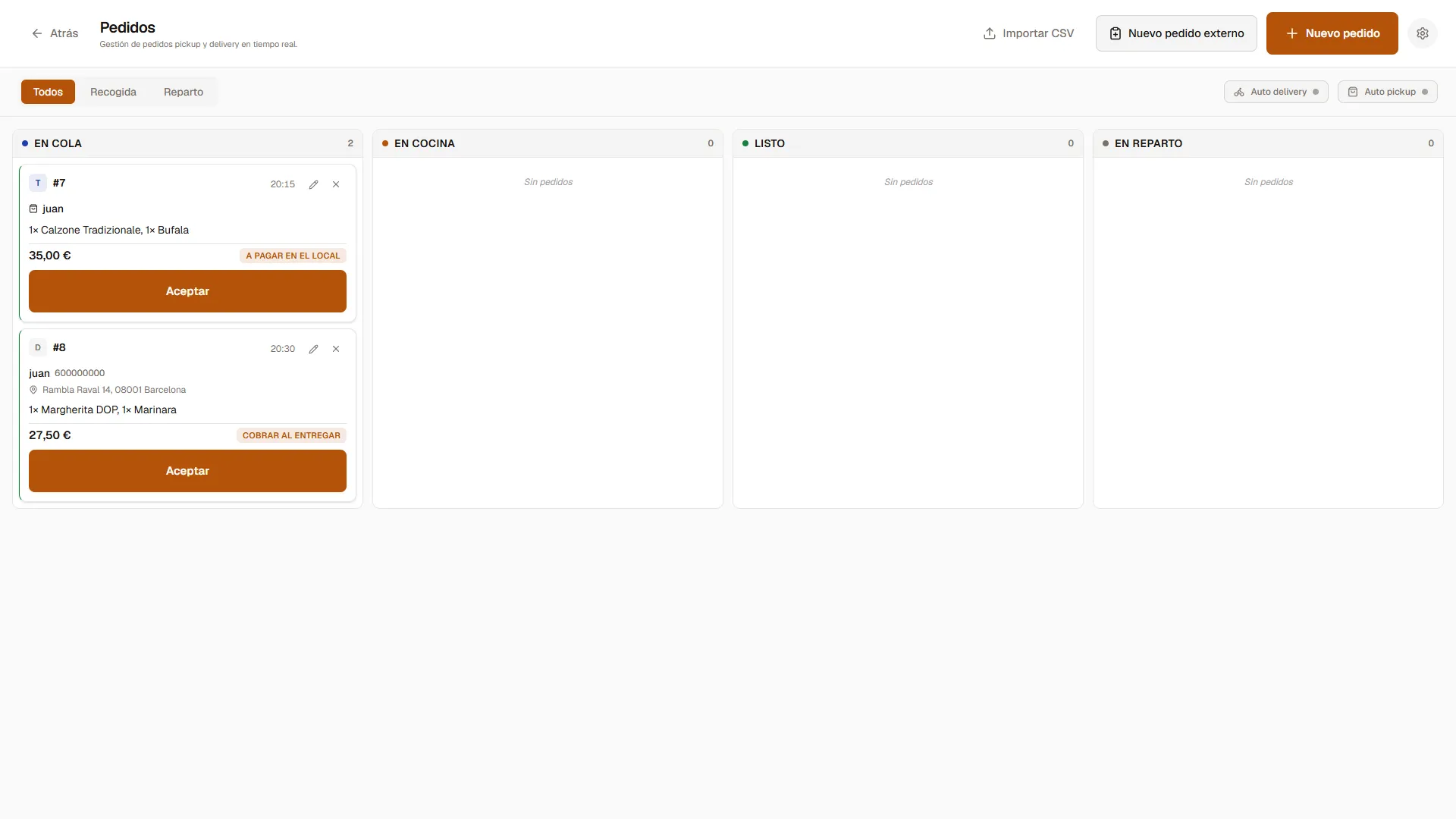 Each order moves through the columns until it’s handed over.
You can filter by Pickup (the customer comes to collect it) or Delivery (a courier takes it), and turn on Auto-pickup / Auto-delivery so orders advance on their own once they’re ready.
Create your own order
- Tap New order.
- Choose pickup or delivery and the time (or “custom time”).
- Add the items from the catalogue (just like on the POS).
- Set the payment method and, for delivery, the customer’s address.
- Tap Create order.
 Time, items and payment method in a single modal.
On the POS you have two buttons: New order (the in-house order you just saw) and New external order.
The total before confirming. When you create the order, the summary shows the total (delivery cost included if it’s a delivery) so you can quote the price and work out the change before closing it. The delivery cost also appears as its own line on the ticket.
Editing an order already created
An order that’s already been created can be modified during service: open it from the kanban and you’ll be able to
- change the quantity of a dish,
- remove dishes,
- and add new dishes from the catalogue (previously you could only edit what was already there).
When you add dishes to an order already in progress, Biga automatically sends only the new dishes to the kitchen (printed or shown on the KDS), without reprinting the whole order. That way the kitchen sees exactly what was added.
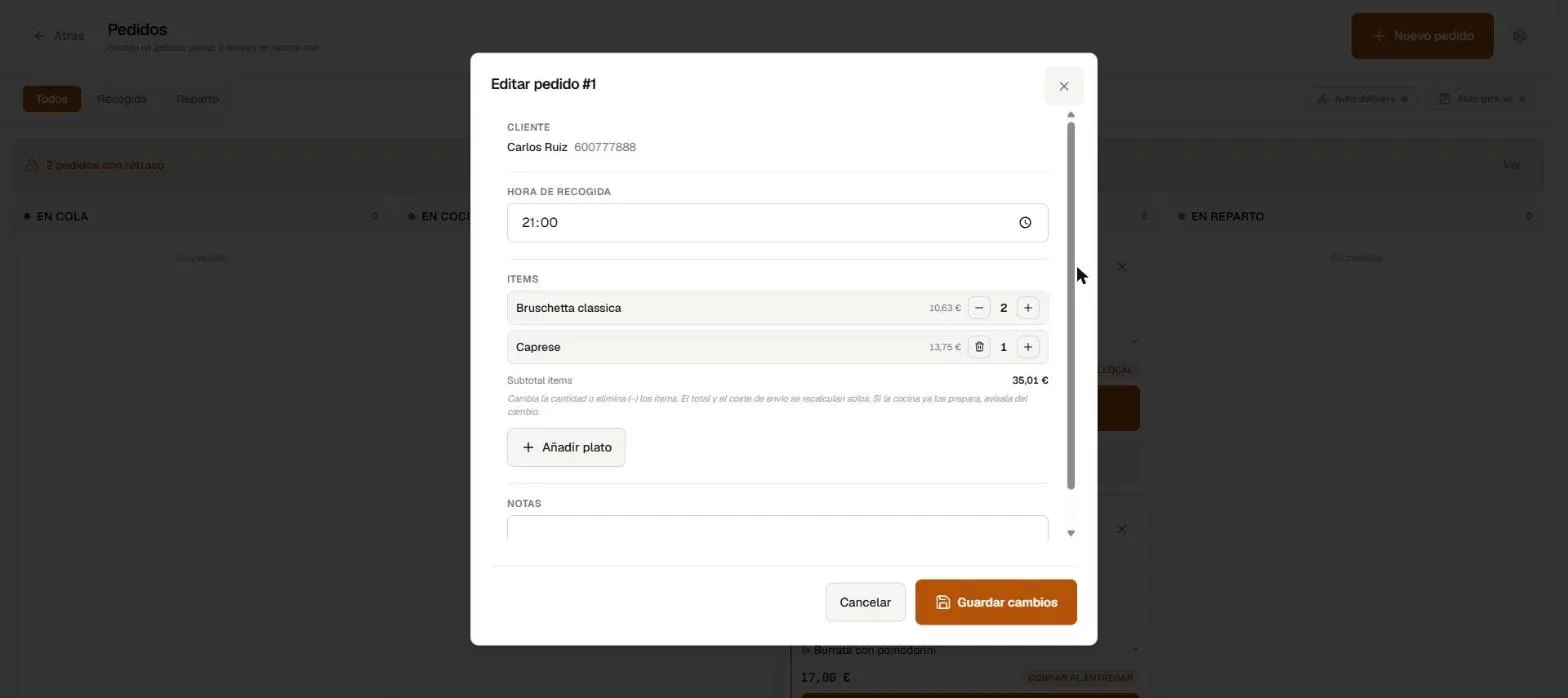 Change quantities, remove dishes or tap “Add dish”; the total and delivery cost recalculate on their own.
Seeing what’s in each order
On the kanban card, when an order has many dishes a +N indicator appears. It’s now clickable: tap it and the card expands the full list of dishes. You can also open the order detail (eye icon) to see it in full. No more guessing which pizzas a pickup order contains.
Knowing if they pay by cash or card
On every kanban card you can see, at a glance, how the customer will pay: 💵 CASH (and what they’ll pay with, so you can prepare change) or 💳 CARD. If it’s already paid online, it says PAID. So you know whether to prepare change or have the card reader ready before the order goes out.
The delivery slip (when you assign a rider)
When you assign a rider to a delivery order, a delivery slip prints automatically so the rider can grab it with the order. It shows the customer’s name, phone, address and what to collect (amount + cash/card + the change to prepare, or “already paid”). The rider also sees it on their phone.
Marking “On the way”
On delivery orders, the kanban card has an On the way button: the restaurant staff taps it when the rider heads out with the order. The rider, on their phone, only has to confirm Delivered on arrival (see Rider).
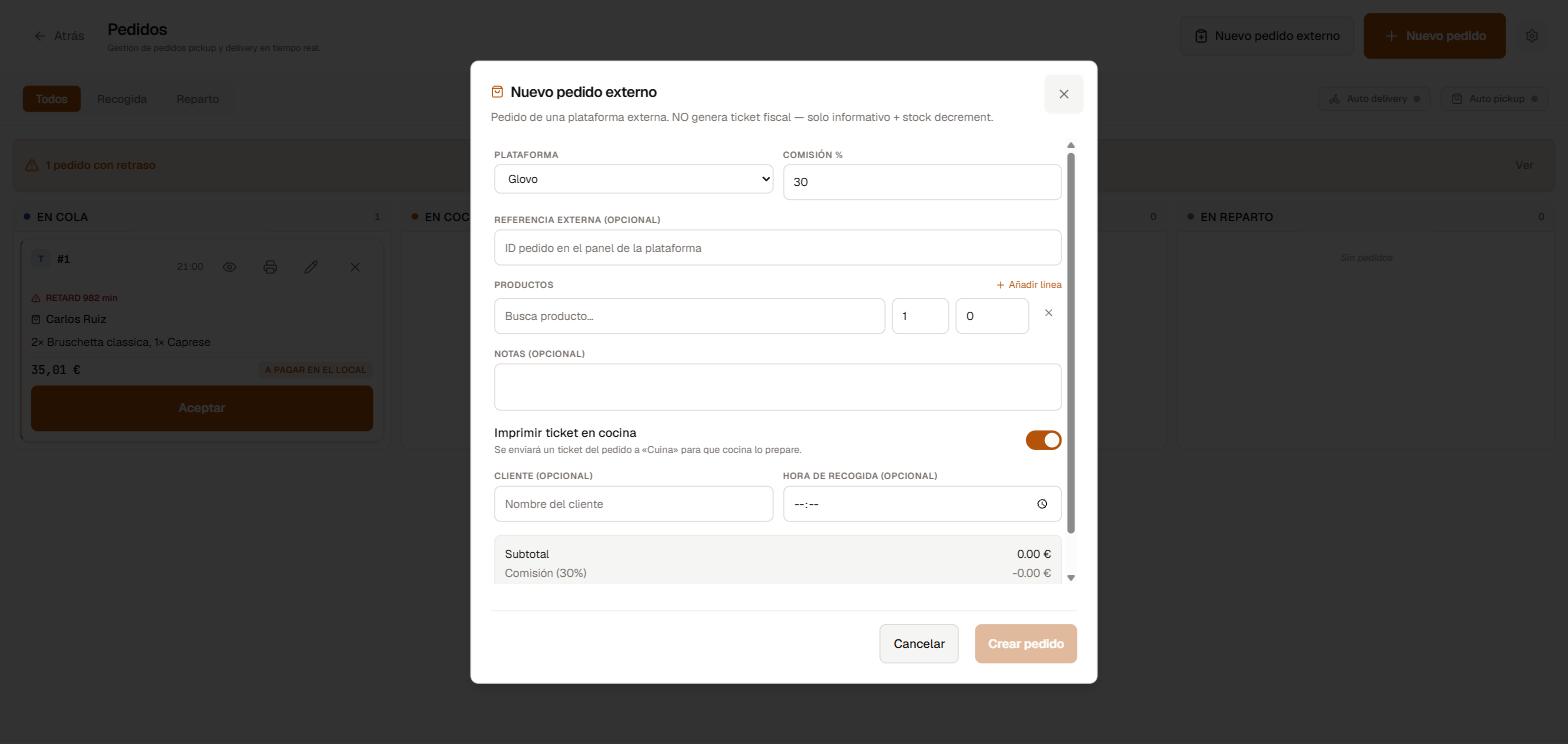
External orders (Glovo, Uber Eats, Just Eat)
An external order is an order that came in through a third-party platform. It’s an informative sale: it’s recorded for your statistics and draws down stock, but it doesn’t generate a fiscal receipt (the platform issues the invoice).
To add one by hand, tap New external order:
- Choose the platform (the commission % is pre-filled automatically and you can adjust it).
- Optionally add the order’s reference from the platform’s dashboard.
- Add the products from the catalogue.
- Leave Print ticket in the kitchen ticked (on by default) so the kitchen gets the ticket and prepares it. You can turn it off if you don’t want it printed.
- The summary shows the subtotal, the commission and the net total (what the platform pays you after its commission).
- Tap Create order.
Importing a CSV from a dashboard (Glovo, Uber Eats, Just Eat) is now done from the back office (Takeaway / Orders), not from the POS. Upload the export and Biga creates the orders in one go, drawing down stock.
The external-orders module can be switched off from the restaurant settings. If you disable it, the New external order button disappears from the POS.
In the kitchen
External orders reach the kitchen clearly marked as takeaway or delivery, so the kitchen can prioritise them properly. See Kitchen and KDS.
Web orders also always print the kitchen ticket automatically when they come in (if you have auto-accept on). Previously some web orders could slip through unprinted; now they all print.
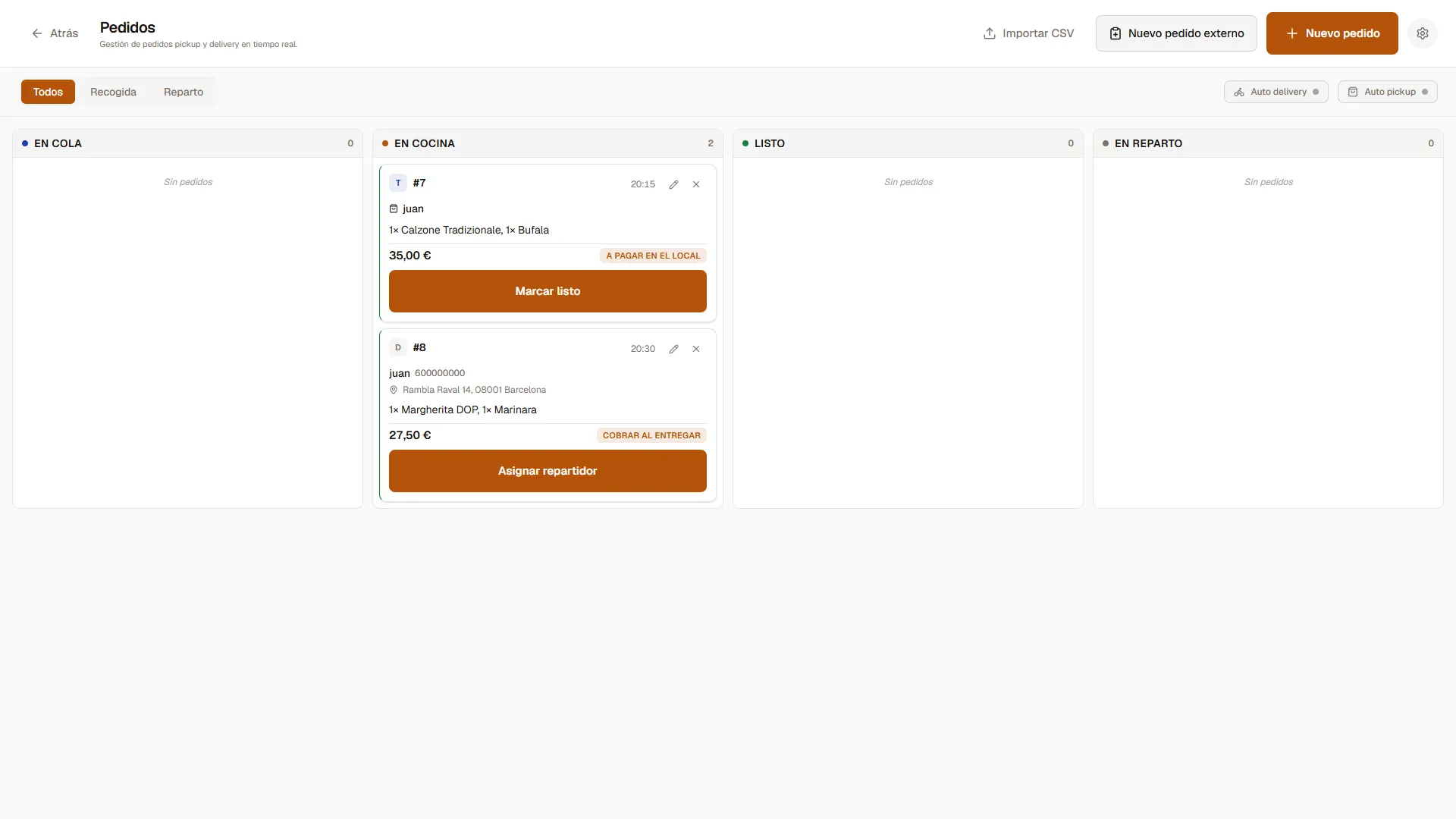 The kitchen tells external orders apart from dine-in ones.
Common issues
- An order won’t advance on its own → check that Auto-pickup or Auto-delivery is enabled; otherwise, move it manually.
- No courier shows up to assign → you need to add a person with the courier role (see Staff).