What expenses are
Biga lets you record all your restaurant’s expenses (supplier invoices, utilities, rent…) and automate the ones that recur every month. You manage them under Billing → Expenses.
The Expenses page has three tabs:
- Invoices — the main supplier-invoice list (it used to be called “List”).
- Periodic — the recurring expenses Biga generates on its own.
- Delivery notes — the supplier delivery notes that update your stock.
The invoice list
In the Invoices tab you’ll see every supplier invoice, with its date, supplier, amount and payment status. You can filter by period and status, filter by supplier with the All suppliers dropdown, and mark invoices as paid.
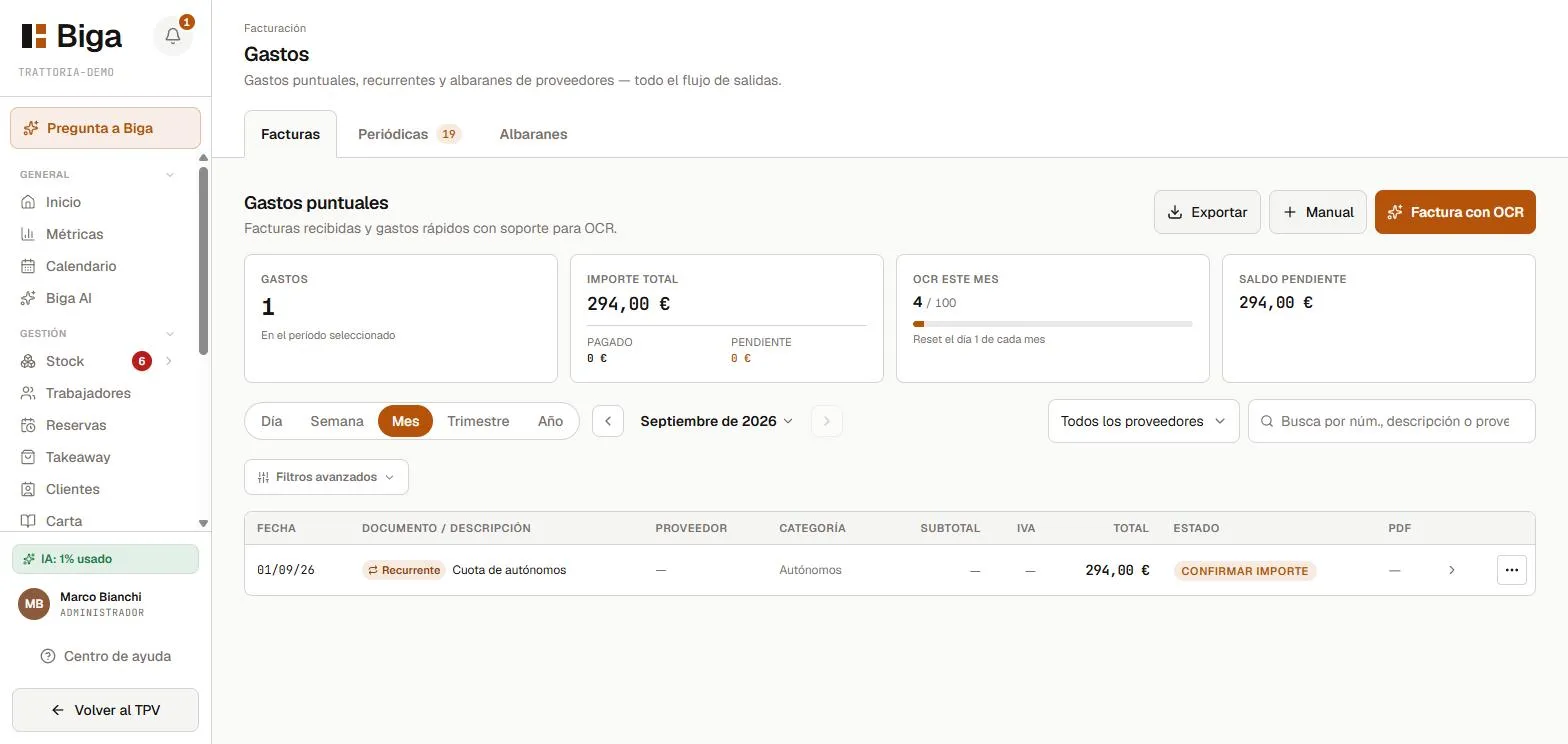 Each expense with its supplier, amount and status.
Recording an expense
- Tap New expense.
- Enter the supplier, date, description and amount. You can tick “Invoice with VAT” to break down the base and VAT.
- If you have the invoice on paper or as a PDF, upload it: the system can extract the data automatically (OCR).
- Save.
Recurring expenses (the ones you pay the same amount for every month) can be marked as periodic, and Biga generates them on its own.
Periodic expenses
Expenses that recur (rent, fees, subscriptions) are set up once as periodic: you enter the amount and the frequency, and Biga creates the entry automatically each period.
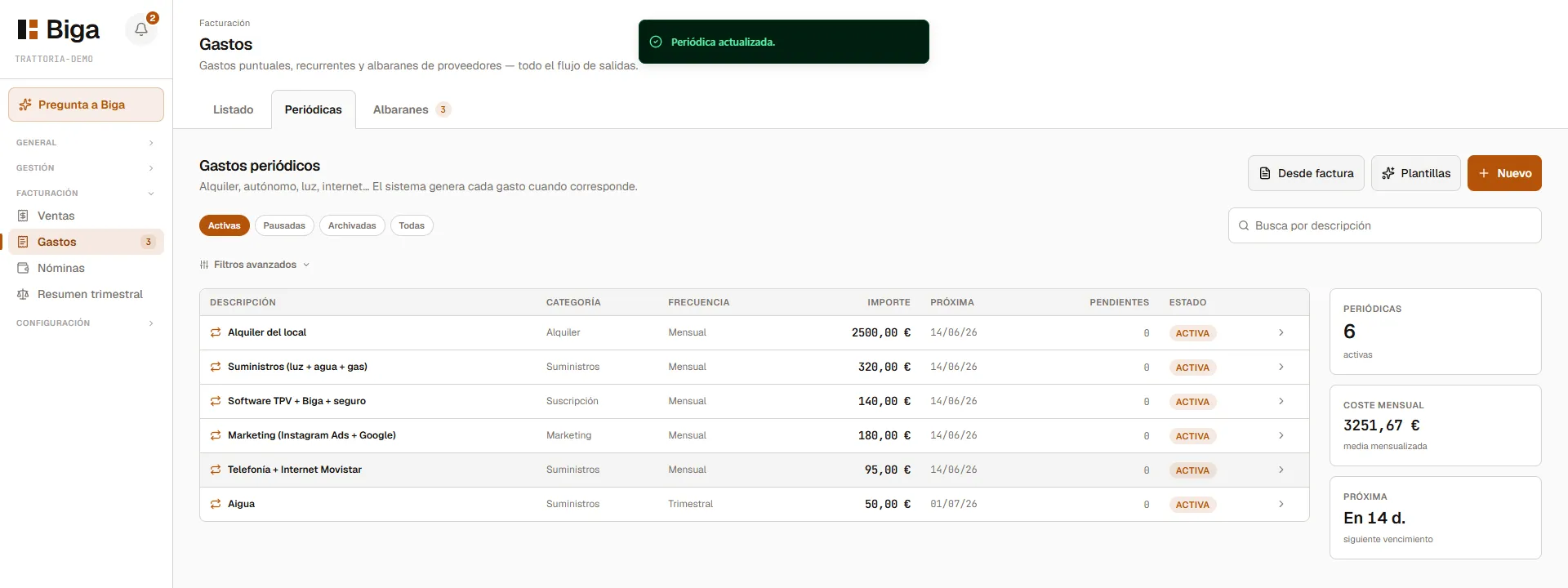 Recurring ones are flagged with the “Recurring” tag.
In the list you’ll spot the periodic ones by the Recurring tag, and you can filter to see only those.
Delivery notes
The Delivery notes tab shows your supplier delivery notes and carries a pending badge that tells you how many delivery notes you still have to confirm. When you confirm a delivery note, the ingredients enter your stock. How they work in detail is covered in Delivery notes and stock.
Common mistakes
- The OCR doesn’t read an invoice correctly → review and fix the fields manually before saving; extraction is a help, not a requirement.
- A periodic expense got duplicated → make sure you didn’t also record it by hand that month.