What the KDS is
The KDS (kitchen display) is where the kitchen sees, in real time, the orders coming in from the waiters. Biga adapts to three ways of working depending on the restaurant’s setup.
| Situation | How the order arrives |
|---|---|
| KDS enabled | It appears on the kitchen display |
| KDS disabled + printer | A kitchen ticket is printed |
| KDS disabled + no printer | Dishes go straight to “ready” |
The kitchen display
At /tpv/cocina, the cook sees the active orders grouped by table. When a dish is done, they mark it; once the whole order is ready, it disappears from the screen.
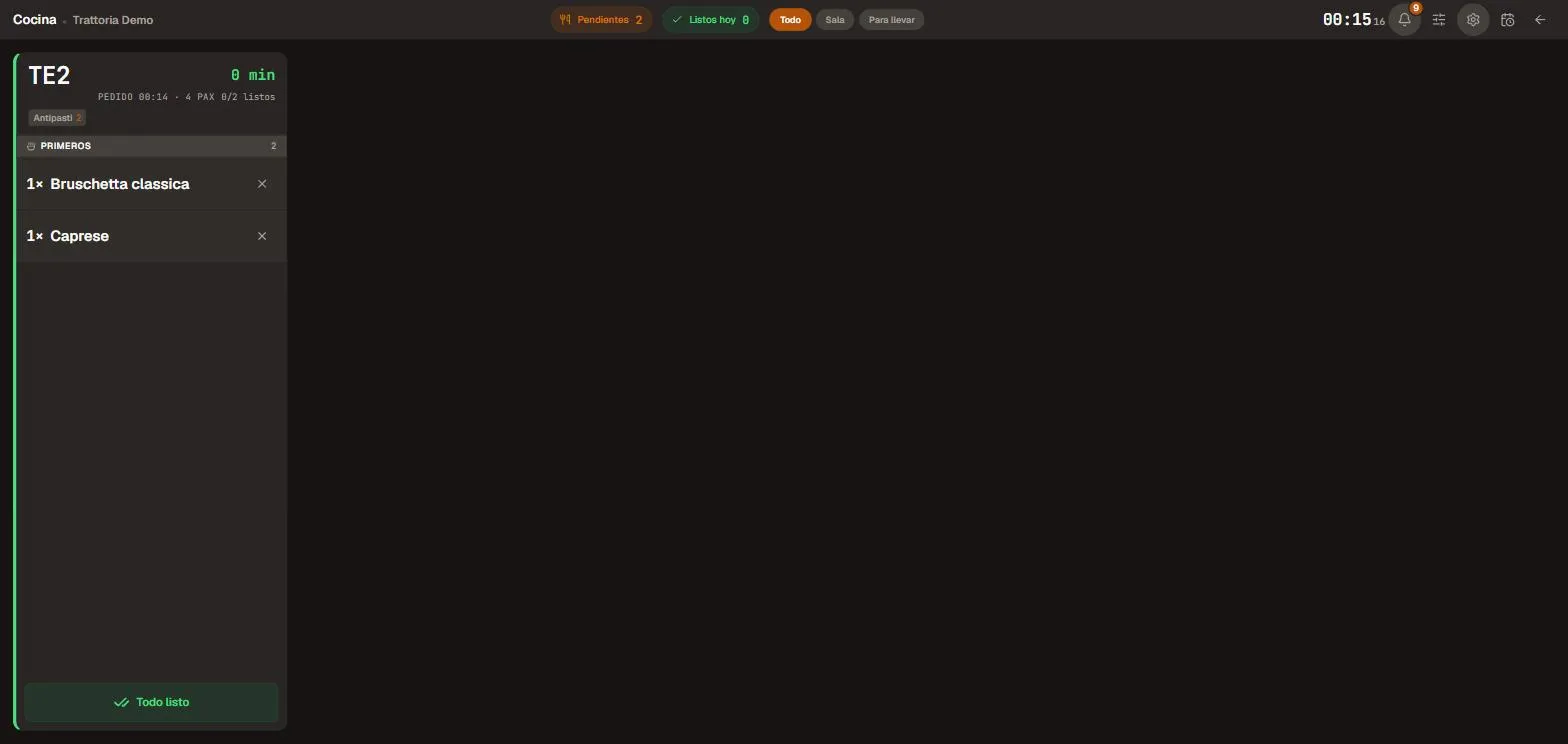 Each card is a table with its dishes and the waiting time.
The KDS always runs in dark mode — it’s the only Biga screen that does, so it reads well from a distance in a brightly lit kitchen.
View options
Top right there’s a View options button (sliders icon) that groups how the cards look:
- Sound — turn the new-order sound alert on or off.
- Time — show the minutes waiting on each card, or only the colour (green/amber/red by urgency).
- Colour and sound thresholds… — fine-tune the minutes at which a card turns amber or red, and the sound type.
Next to it is the TPV menu gear (fullscreen, go to the server app, sign out…). They’re two different things: View options is how the KDS looks; the gear is device utilities.
Takeaway and delivery dishes
Takeaway and delivery orders stand out visually so the kitchen can prioritise them correctly. For delivery orders, the card shows the delivery address, the distance and the estimated driving time (traffic included), so the kitchen can time them right.
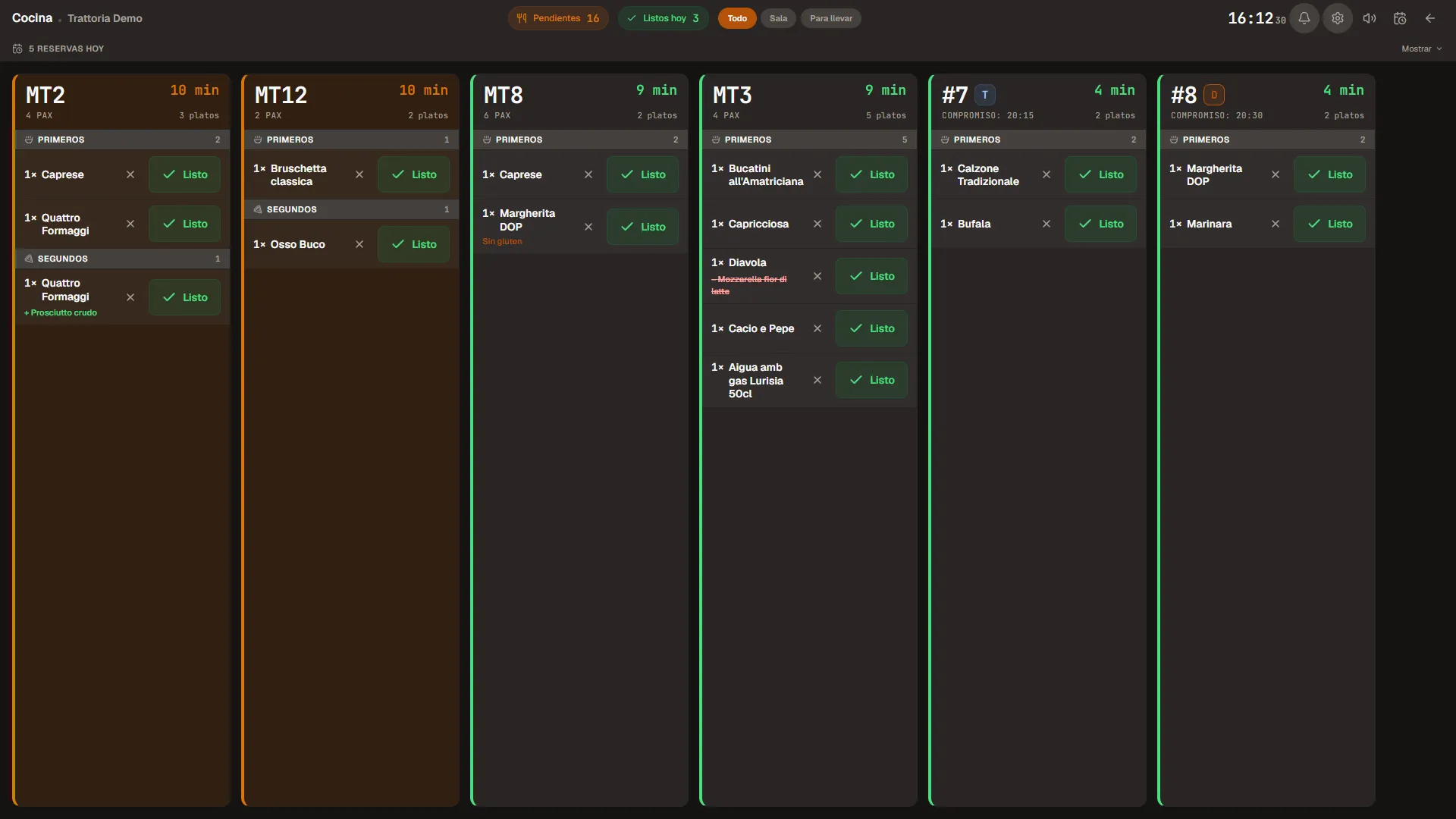 “Takeaway” orders are clearly flagged.
Marking dishes as ready
As the kitchen finishes each dish, it marks it as ready: it gets struck through on the card. Once they’re all done, the Table done button appears to clear it from the screen.
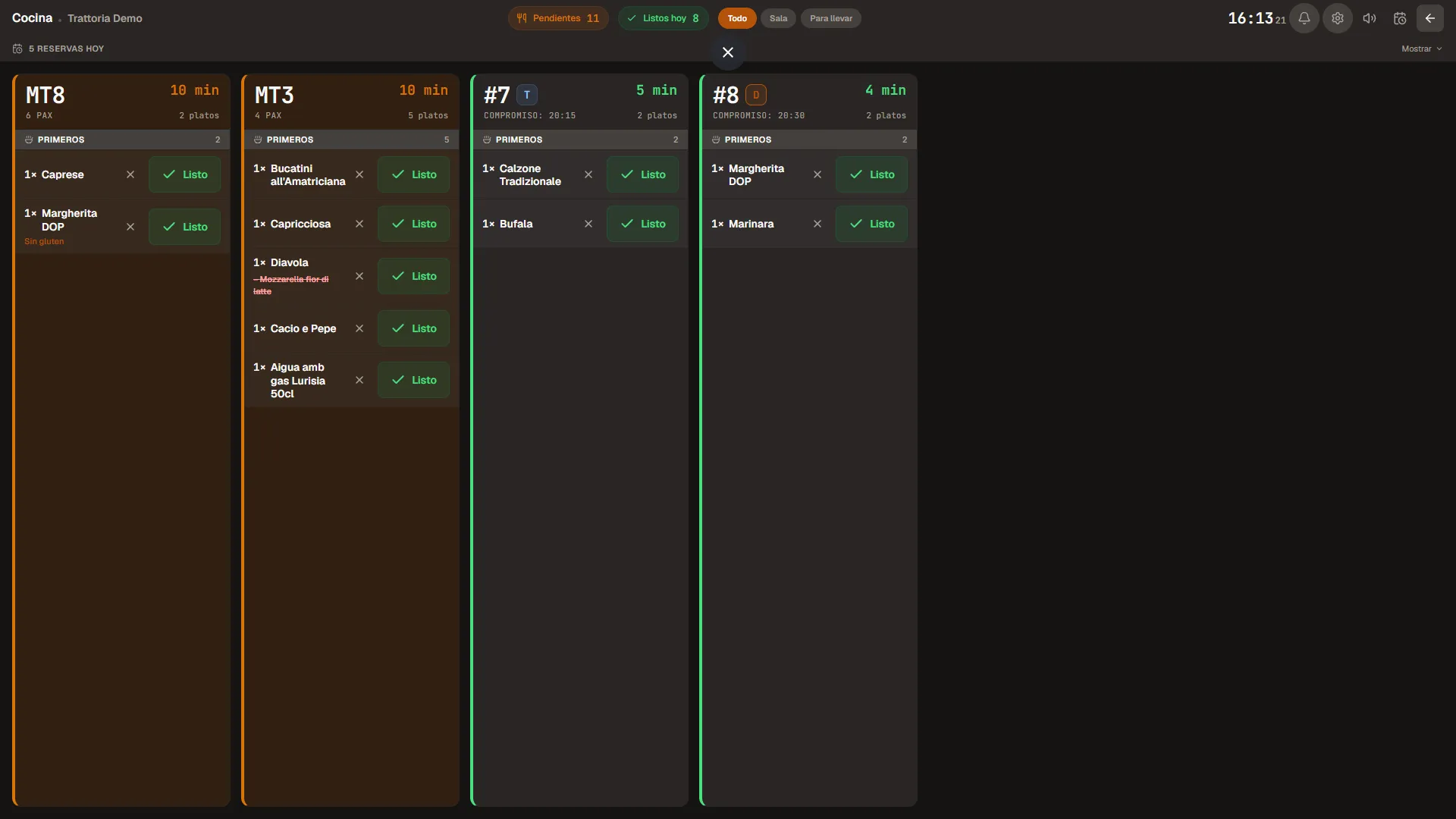 Ready dishes stay struck through until the table is marked as done.
Configurable (Settings → Daily operations):
- Per-dish “Ready” button — you can hide each dish’s button and let the kitchen clear the order with just “All ready” on the card.
- Dish-ready alert — when the kitchen marks a dish ready, waiters can be notified (or not).
- Categories off the KDS — you can make a category (e.g. desserts or drinks) not show on the KDS and only print in the kitchen.
Courses: mark a whole course and “Firing”
A table’s dishes are grouped by course (starters, mains, desserts…). Each course block has a Course ready button that marks all the dishes in that course at once, so you don’t have to go one by one.
When a later course shouldn’t go out yet, it waits with a small Firing [course] button. Tapping it (or when the waiter requests it from the table) “fires” the course: its timer starts and the kitchen begins preparing it. This way the kitchen doesn’t cook the mains too early, and each course’s time is measured from the moment it’s actually requested.
Reviewing orders already done (“Done”)
In the top bar, the green Done today counter is now a button. Tapping it opens the Done view: the list of orders already finished today (table, pickup or delivery), read-only.
It’s there to settle questions during service —“has this table already gone out?”, “what was in that pickup order?”— without recovering anything or undoing state. Tap the button again to return to the active view.
The order kanban
For takeaway and delivery, the POS offers a kanban view (received → in preparation → ready → picked up) so you can keep track of every external order without losing track.
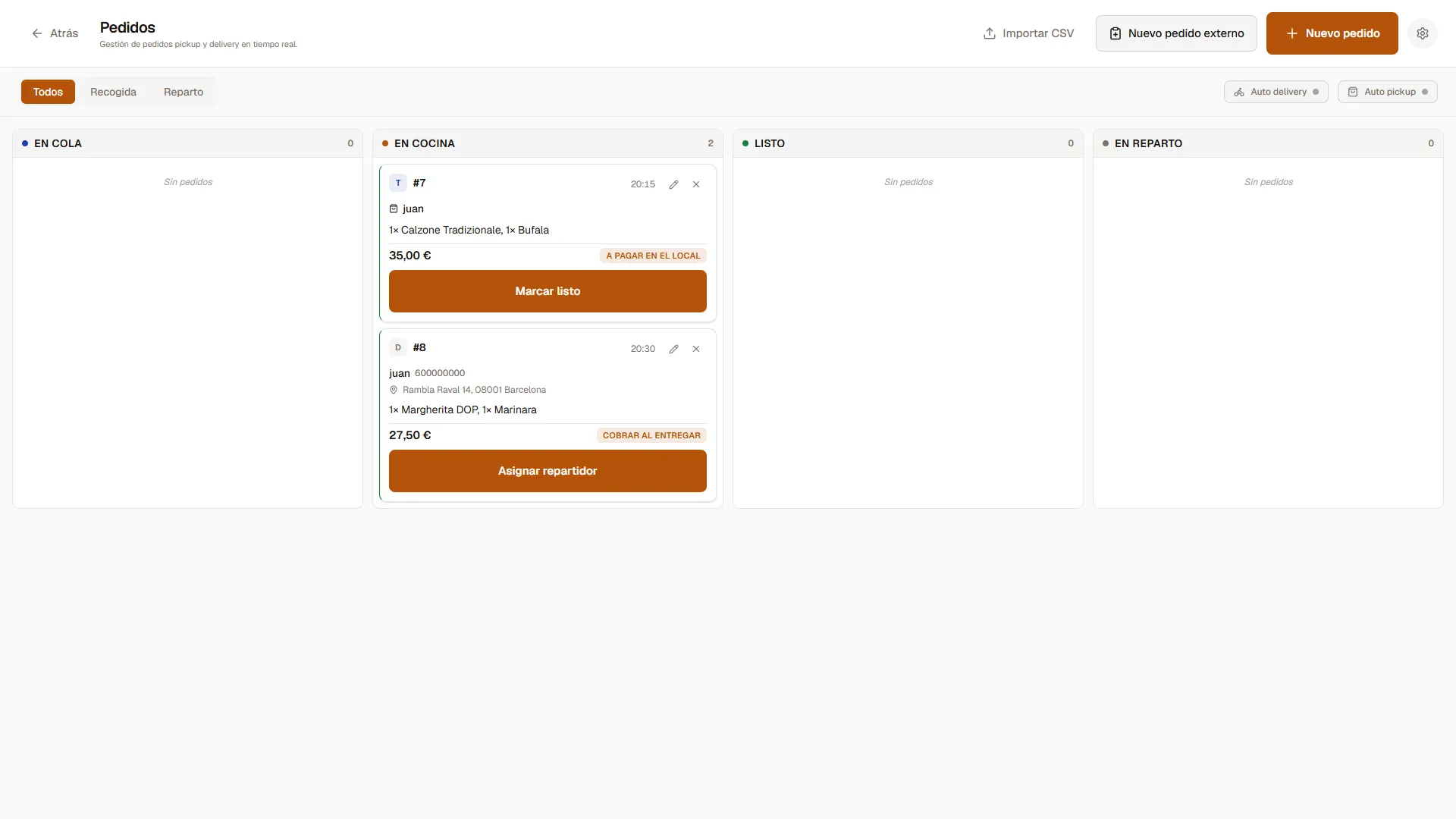 Orders move across the columns until they’re handed over.
Common issues
- I sent dishes and they don’t show up → reload
/tpv/cocinaand check that the KDS is enabled (Settings → Operations). - The screen is black → that’s intentional, the KDS is always dark.
- It’s not printing the kitchen tickets → check the print agent and the printer (see the printers section in the full manual).