The menu
The menu is the catalogue of dishes that shows up on the POS. From the back office (Management → Menu) you manage categories, products, prices, recipes (cost sheets) and modifiers.
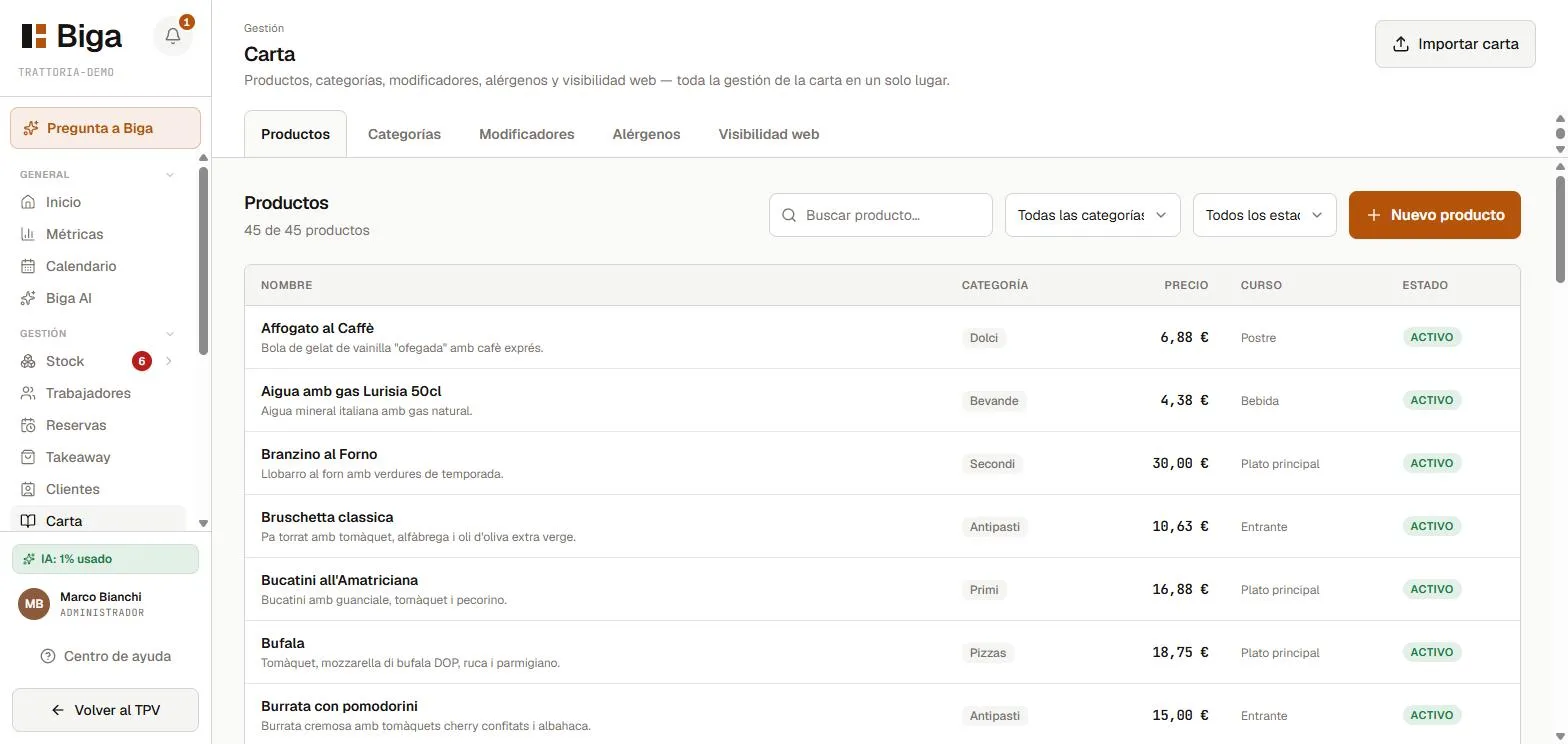 Products organised by category, with price and status.
Creating a product
- Go to Management → Menu → Products and tap New product.
- Fill in the form:
- Name and Price (VAT included) — required.
- Category and Service course (starter, main, dessert, drink…).
- Description and image (optional).
- Allergens — you can tick them here, but the recommended way is to define them on the ingredient and propagate them (see below).
- Switches: Off-menu, To share, Active.
- Save. The product is now ready to add to orders on the POS.
Importing the menu with AI
If you have your menu on paper or as a PDF, there’s no need to type it out by hand: Biga can read it and load it automatically using artificial intelligence. Perfect for getting set up.
 The AI reads the menu and suggests the products; you review and confirm.
Recipes and cost sheets
A cost sheet is a dish’s recipe: which ingredients it uses and in what quantity. Defining them lets Biga calculate the cost of the dish and deduct stock automatically when it’s sold.
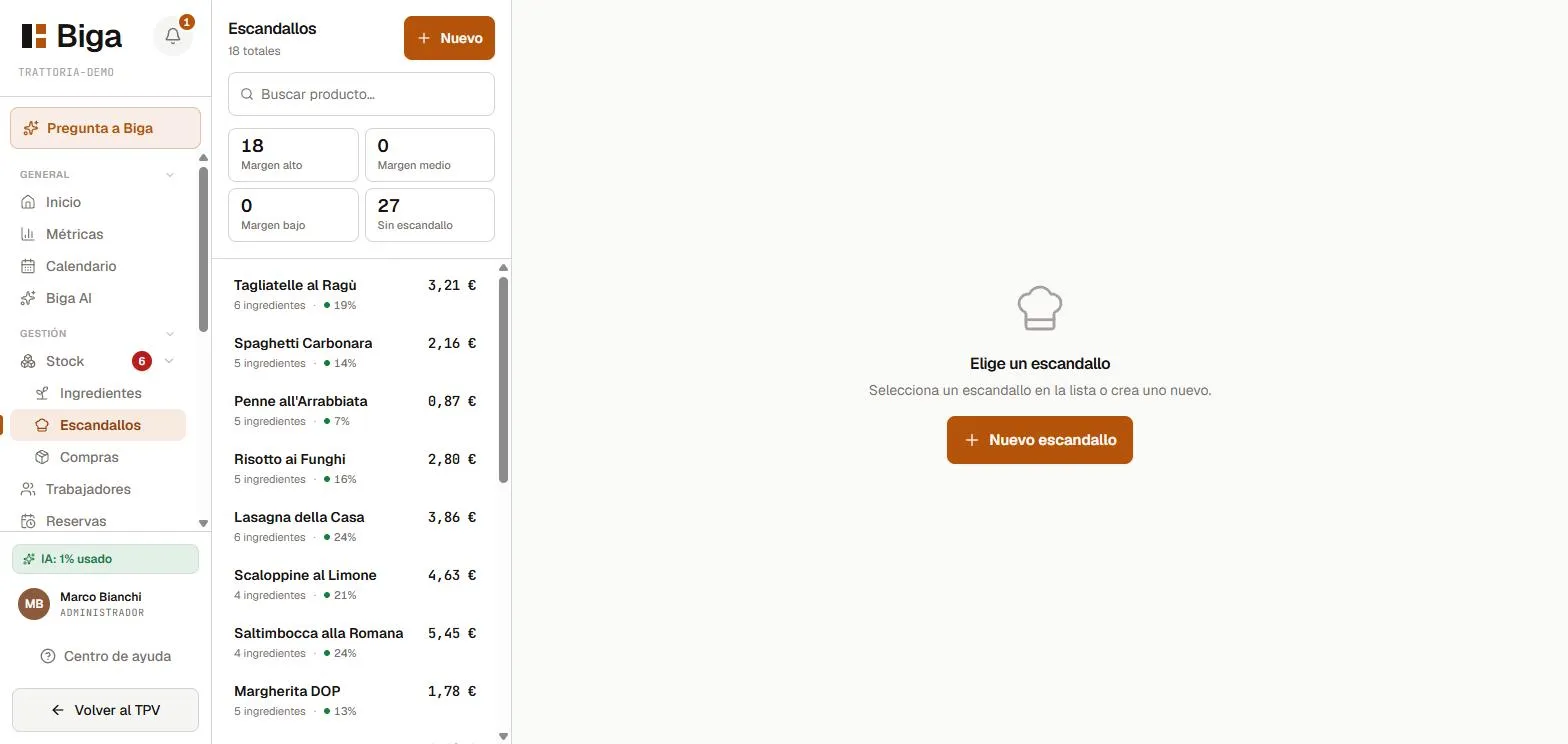 Each dish with its recipe: ingredients, quantities and cost.
Allergens
Allergens are defined per ingredient, using the official EU catalogue of 14 allergens. You tick them once in each ingredient’s drawer, so you don’t have to repeat them on every dish.
To propagate them to the dishes, go to the Allergens tab in the Menu and tap Calculate from cost sheets: Biga goes through the recipes and adds the ingredients’ allergens to every dish that has a cost sheet.
- The calculation is additive: it adds allergens, but never removes any you’ve ticked by hand.
- Traces and cross-contamination are not deduced automatically — they’re your call (review them after the calculation).
The Allergens tab shows the 14 allergens with the number of dishes that contain each one, plus a warning for dishes that still have none ticked. Opening an allergen lets you go dish by dish, with a filter by category to work in blocks (Pizzas, Desserts…).
Common mistakes
- A dish doesn’t deduct stock when sold → check that it has a cost sheet defined.
- The AI misread a price → review and correct it before confirming the import; you always have the final say.
For the structure of categories, courses and global modifiers, see Configuring the menu.